Logging In and Out
Overview
This tutorial explains how you can log in, log out of your Cambridge Numerical Solutions (CNS) platform account and what to do if you forget your password.
Logging in
To log in to your account, visit the log-in portal. You will be presented with the screen below.
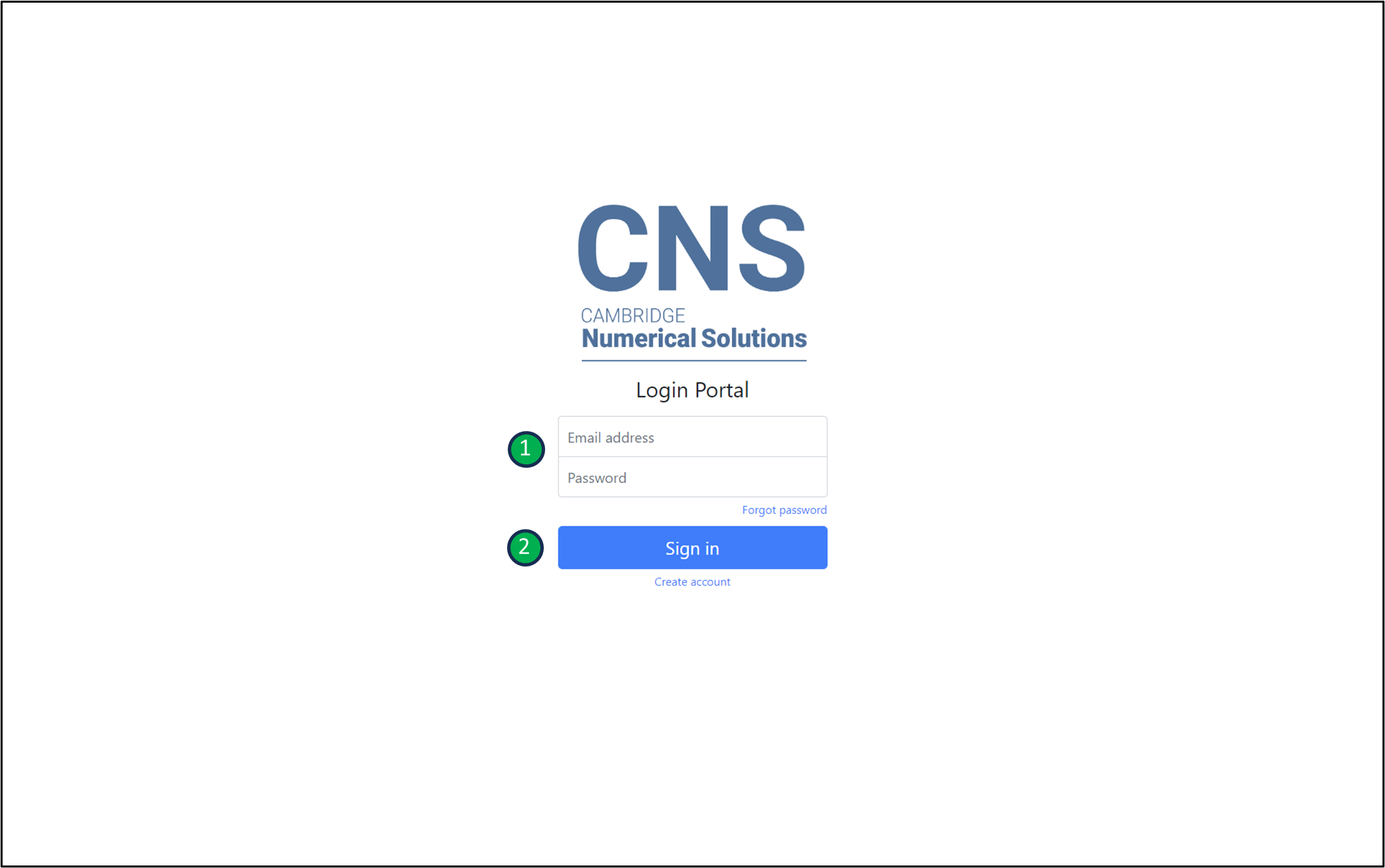 Log-in page for the CMP web portal
- Enter your registered e-mail address and password within the respective input fields. If this is the first time you are logging in, use the temporary password sent to your registered e-mail address from ‘no-reply@cambridge-numerical-solutions.com ’. If you are unable to locate the e-mail, please make sure to check the spam/junk folders of your e-mail account.
- Click on the ‘Sign in’ button.
When logging in for the first time, you will be presented with the ‘change your password’ window through which you will be required to change your temporary password as follows:
- Enter your new password. The password must be at least 8 characters long, and should contain at least 1 number, 1 special character, 1 uppercase letter, and 1 lowercase letter.
- Re-enter your new password.
- Click the ‘Submit’ button.
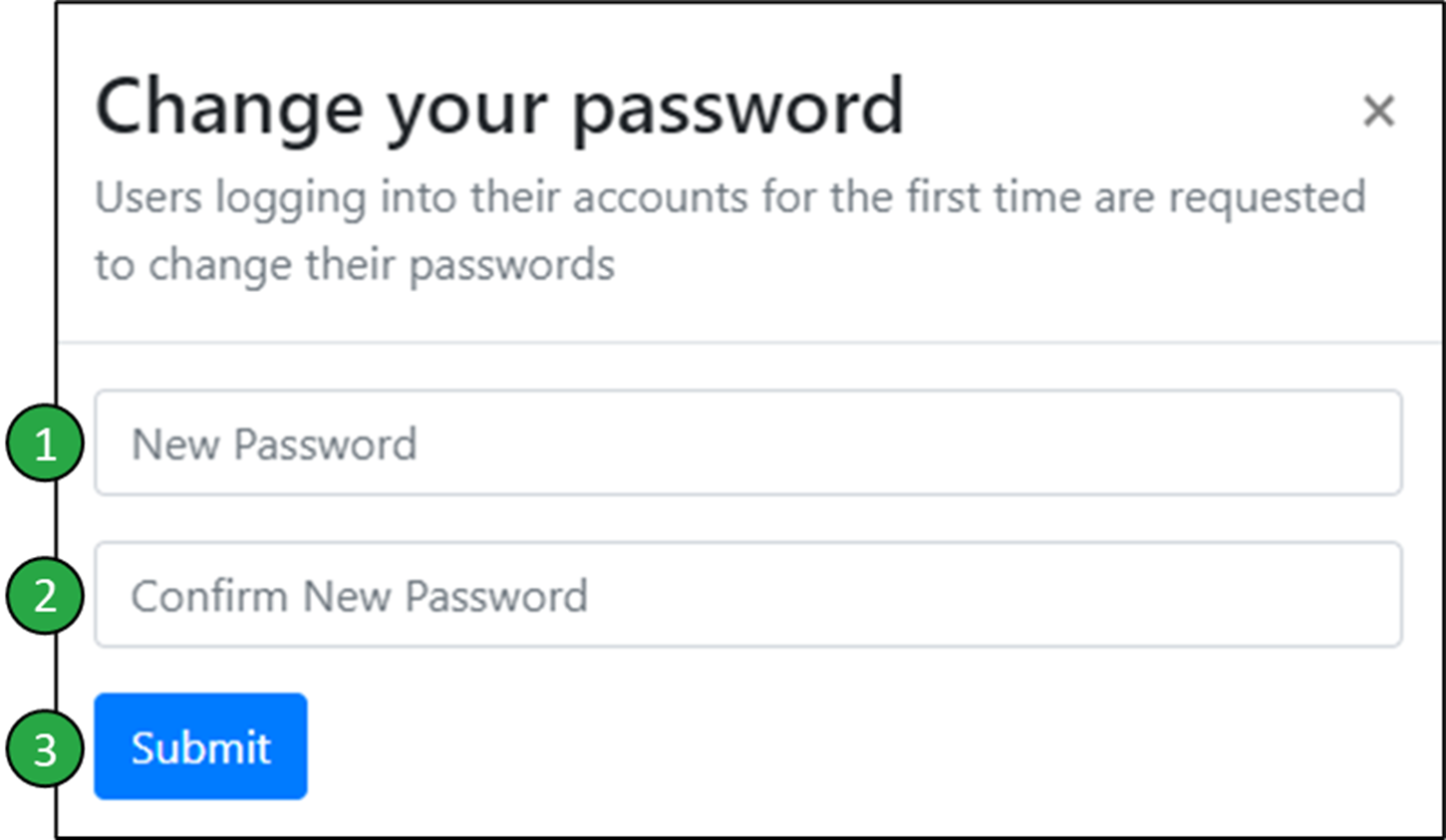 The ‘Change your password’ window
Multi-factor authentication (MFA) is used to further secure your account. If you are logging in for the first time, you will be prompted with a window to set-up MFA access:
- Scan the QR code that is displayed using the Authenticator app of your choice (e.g. Google Authenticator, Microsoft Authenticator).
- Enter the MFA code displayed in your Authenticator app.
- Click the ‘Submit button’.
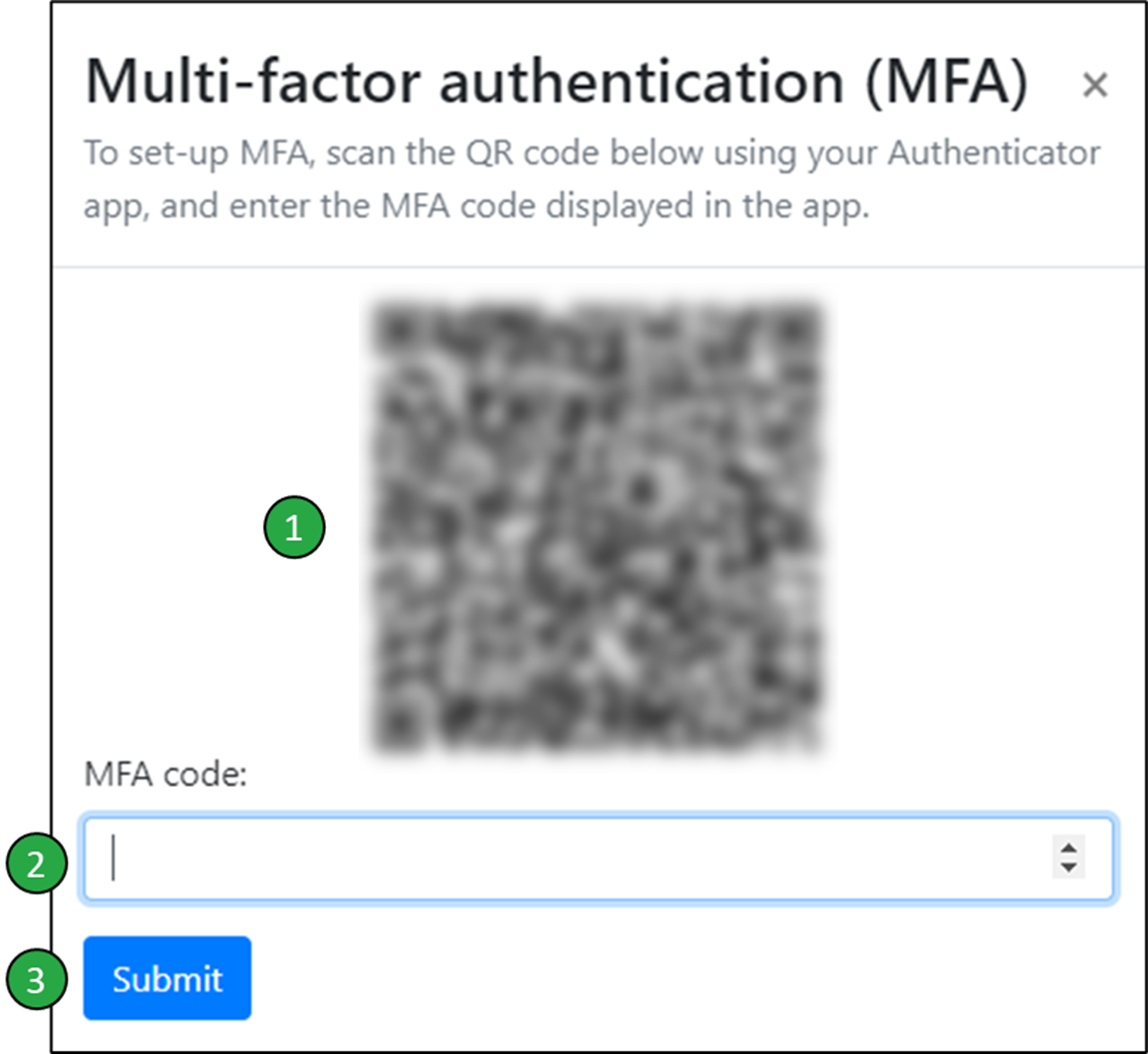 Setting up Multi-factor authentication
Upon successful completion of these steps, a ‘Password change and MFA setup successful: Please proceed to log-in’ message will be displayed below the ‘Sign in’ button. You may now log-in to your account using the same procedure every time as described below:
- Enter your registered e-mail address and password within the respective input fields.
- Click on the ‘Sign in’ button.
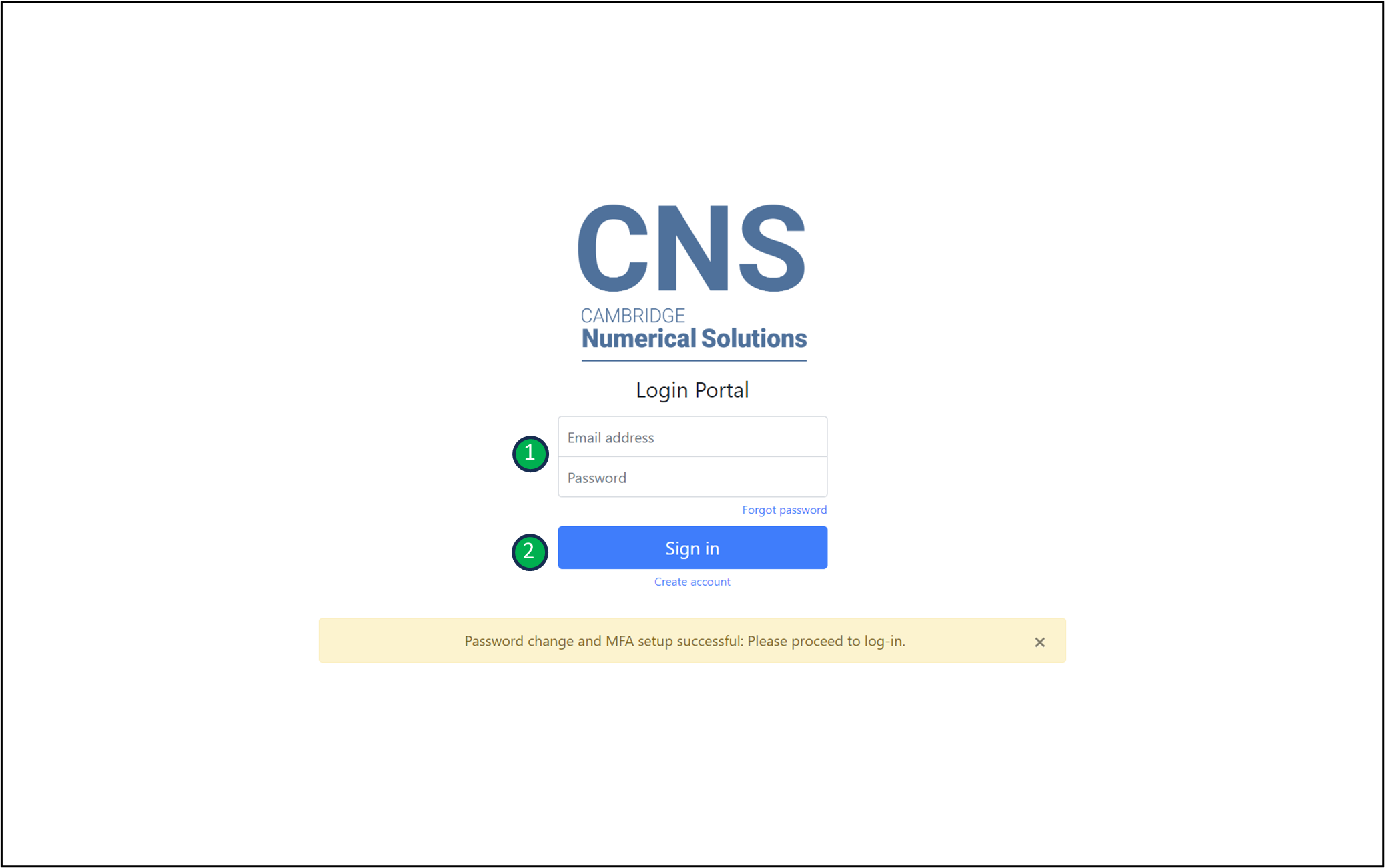 Logging in after the password change and MFA setup
In the Multi-factor authentication (MFA) window that opens:
- Enter the MFA code displayed in your Authenticator app.
- Click the ‘Submit’ button to login to your account.
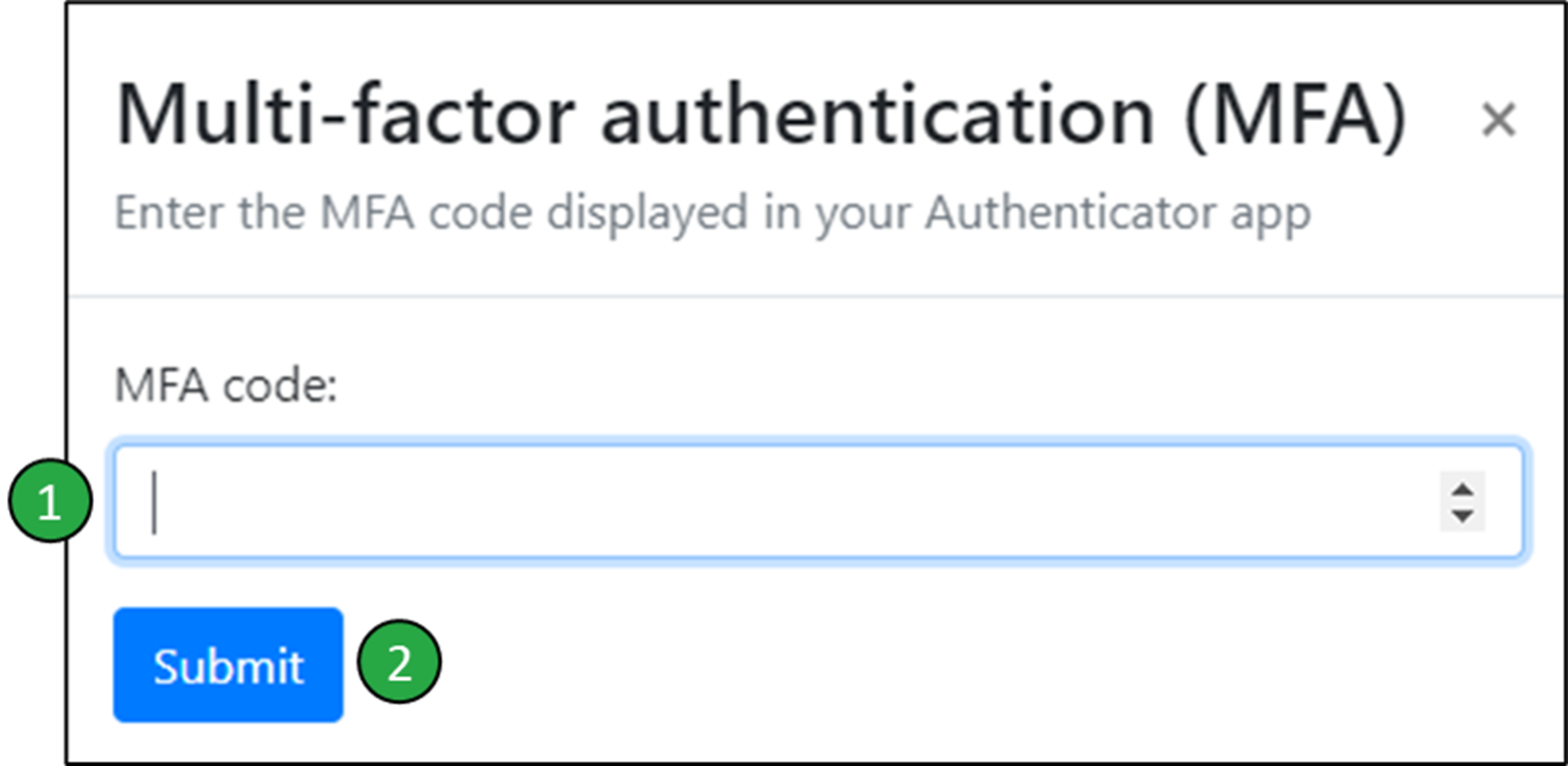 Logging in with your MFA code
Forgot password
If you have forgotten your password and would like to reset it, click on the ‘Forgot password’ link on the log-in page.
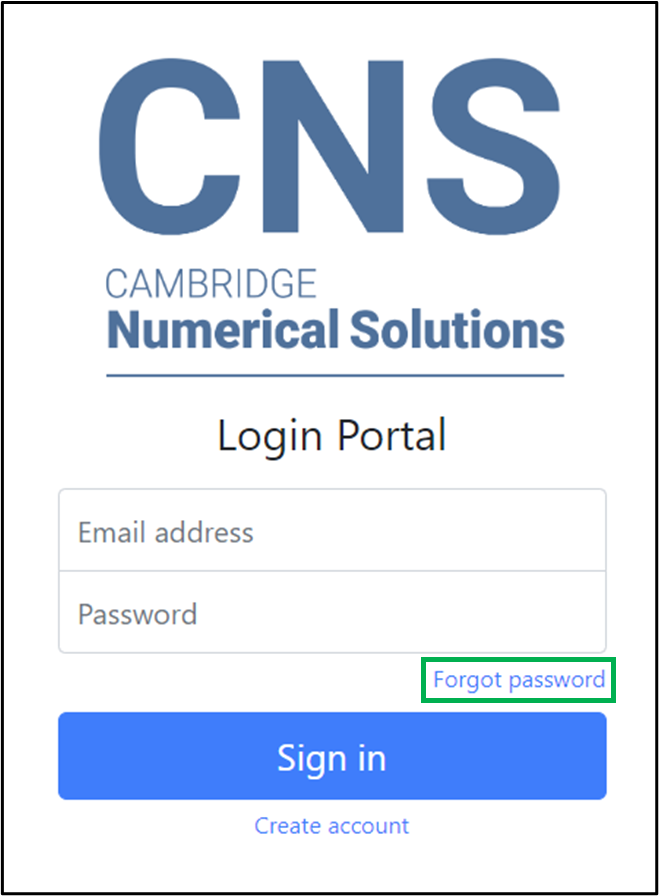 Forgot password link on the log-in page
In the first ‘Password assistance’ window which opens:
- Enter your registered e-mail address.
- Click the ‘Submit’ button.
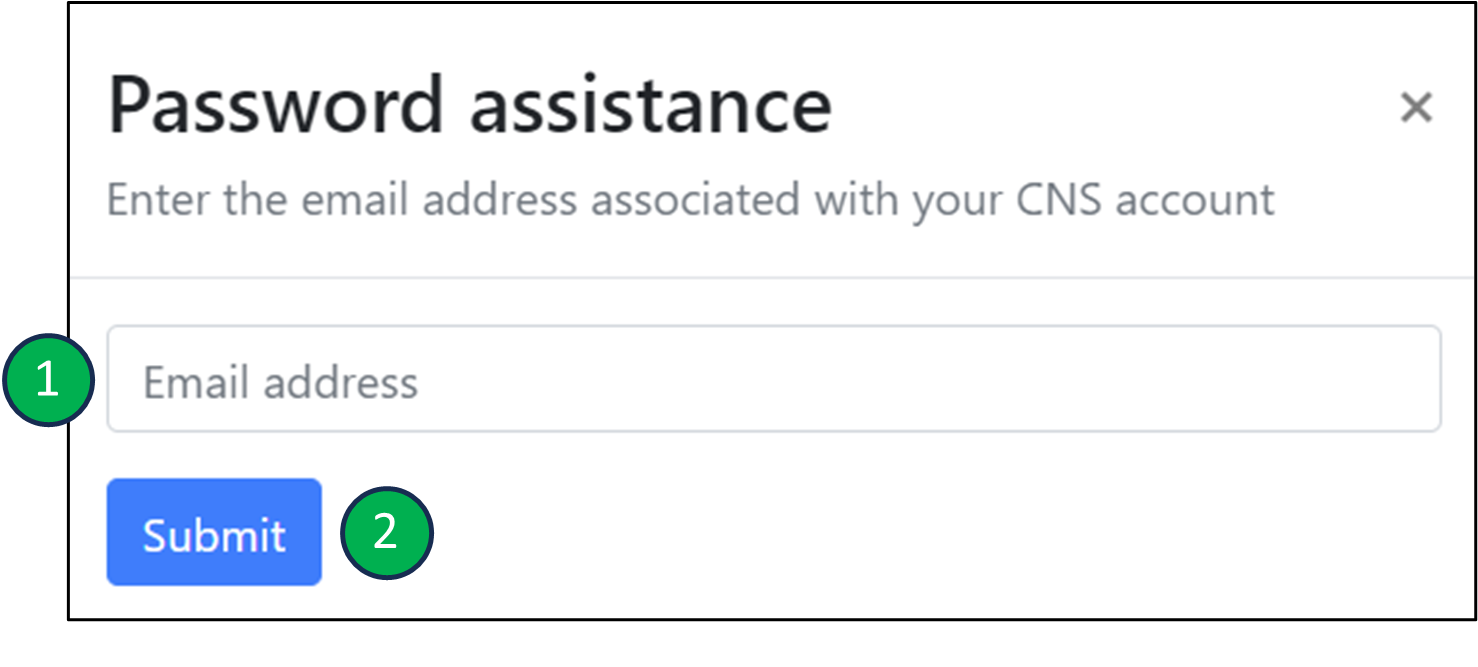 First ‘Password assistance’ window
You will shortly receive an e-mail containing your password reset verification code from ‘no-reply@cambridgemultiphysics.com’. If the e-mail does not arrive in your inbox, please make sure to check the spam/junk folders of your e-mail account.
In the second ‘Password assistance’ window:
- Enter the verification code that was sent to your registered e-mail address.
- Enter the new password that you would like to use.
- Re-enter the new password.
- Click the ‘Submit’ button to reset your password.
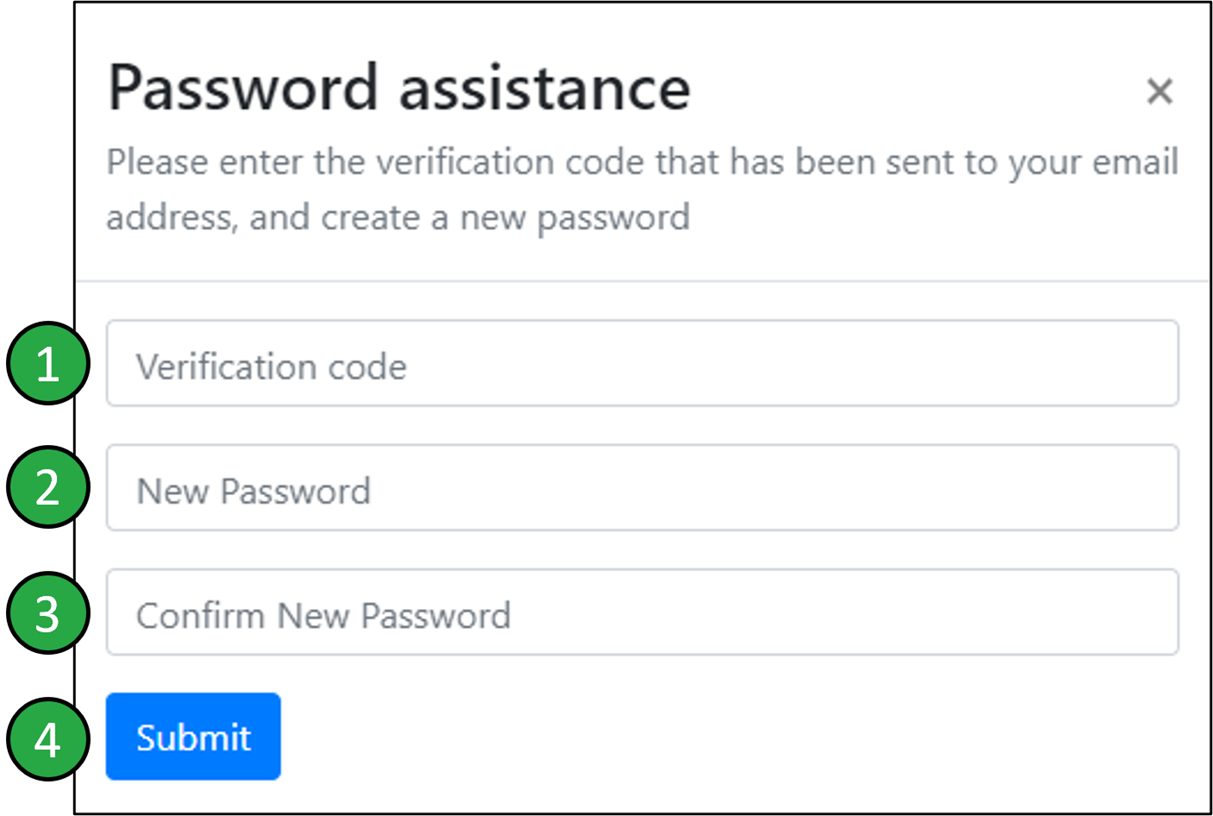 Second ‘Password assistance’ window
Logging out
You can log out via the User button which can always be found in the top-right corner of the application window.
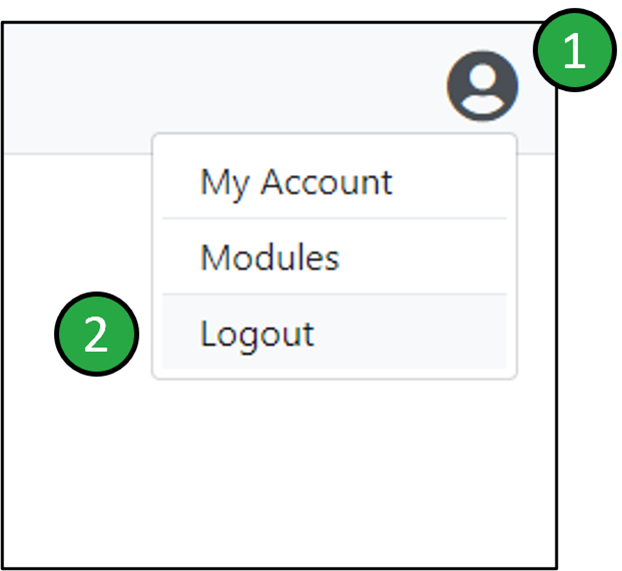 Logging out of the CMP web portal using the User button
- Click on the ‘User’ button to expand the dropdown menu.
- Click on the ‘Logout’ option to log out of your account. You will be re-directed back to the log-in page.
On this page

We’d be happy to help. Get in touch today.

© 2026 Cambridge Advanced Simulations. All Rights Reserved. Privacy Policy. Terms of Use.
COMPANY
Corporate Name:
Cambridge Advanced Simulations S.A.
Legal Form: Single Member S.A.
REGISTRATION
GEMI No: 188724401000
Athens