Official tutorials provided by Cambridge Numerical Solutions
Overview
The CaThe module of the Cambridge Numerical Solutions (CNS) platform includes a built-in list of ingredients, but also provides users the ability to create and customize their own ingredients. This tutorial explains how to create and manage custom ingredients, starting from the ‘Simulations’ page. For instructions on accessing the ‘Simulations’ page, see the tutorial ‘Performing a simulation from scratch’.
Navigating to the ‘Manage Ingredients’ page
Starting from the ‘Simulations’ page, you can navigate to the ‘Manage Ingredients’ page by clicking on the ‘Manage Ingredients’ button.
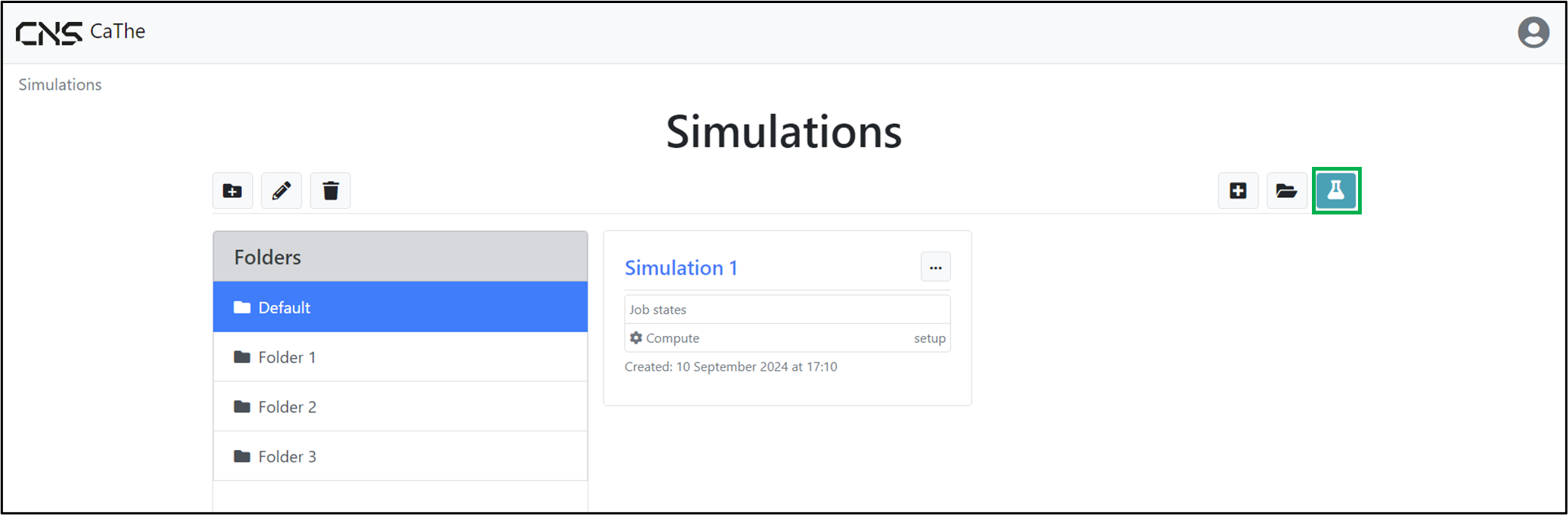
Locating the ‘Manage Ingredients’ button.
The ‘Manage Ingredients’ page displays a list of all the ingredients (built-in and custom) associated with your account. This is the same list of ingredients that is displayed in the settings configuration page, which can be used to create an explosive material mixture. For more information on how these ingredients are used in a simulation, see tutorial ‘Performing a simulation from scratch’.
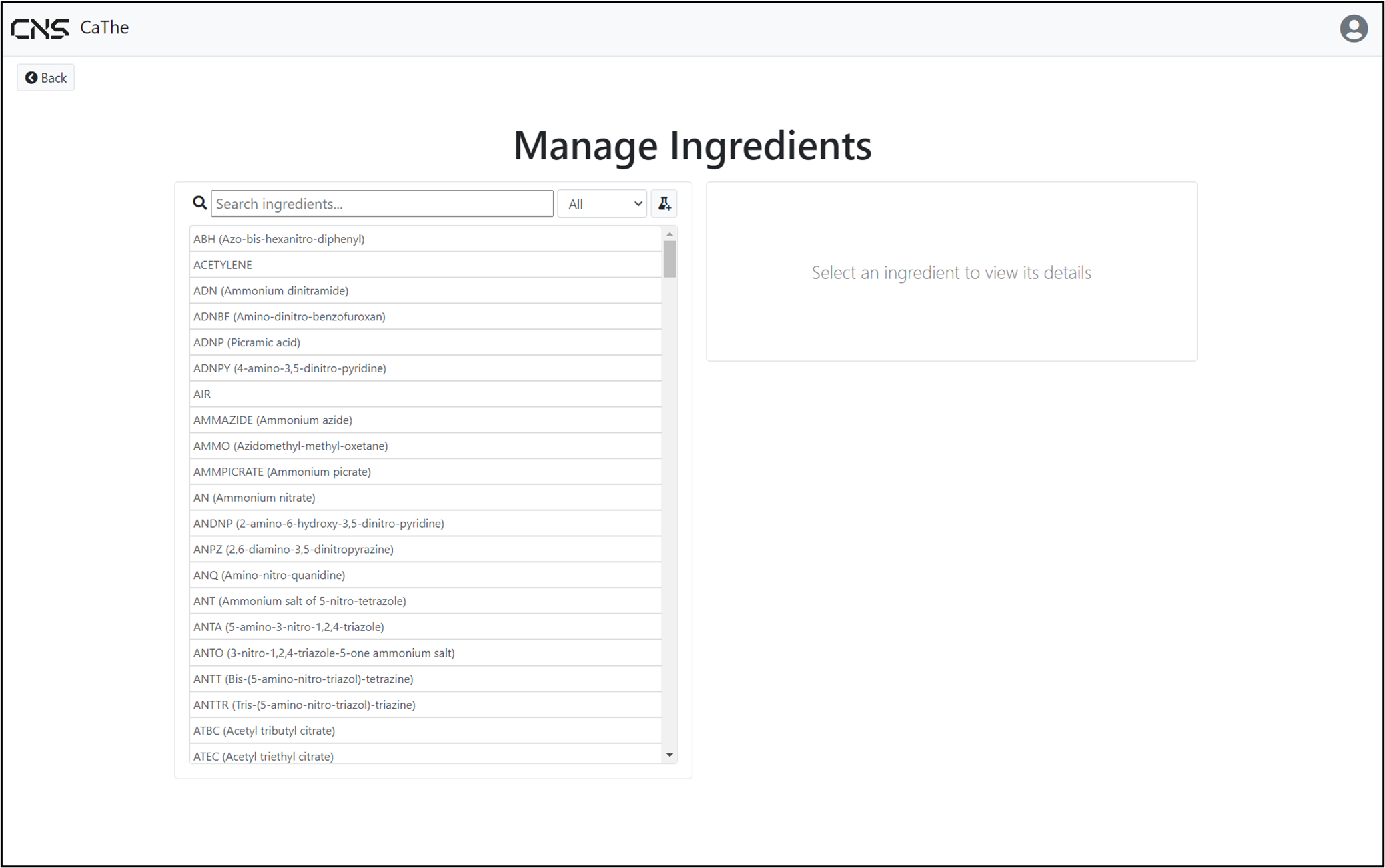
The ‘Manage Ingredients’ page of CNS CaThe module.
Managing ingredients
Searching for existing ingredients
You can search for existing ingredients by using the search bar. After typing a keyword, a search through the names and abbreviations of all existing ingredients will be carried out and the results will be displayed in the ingredients list.
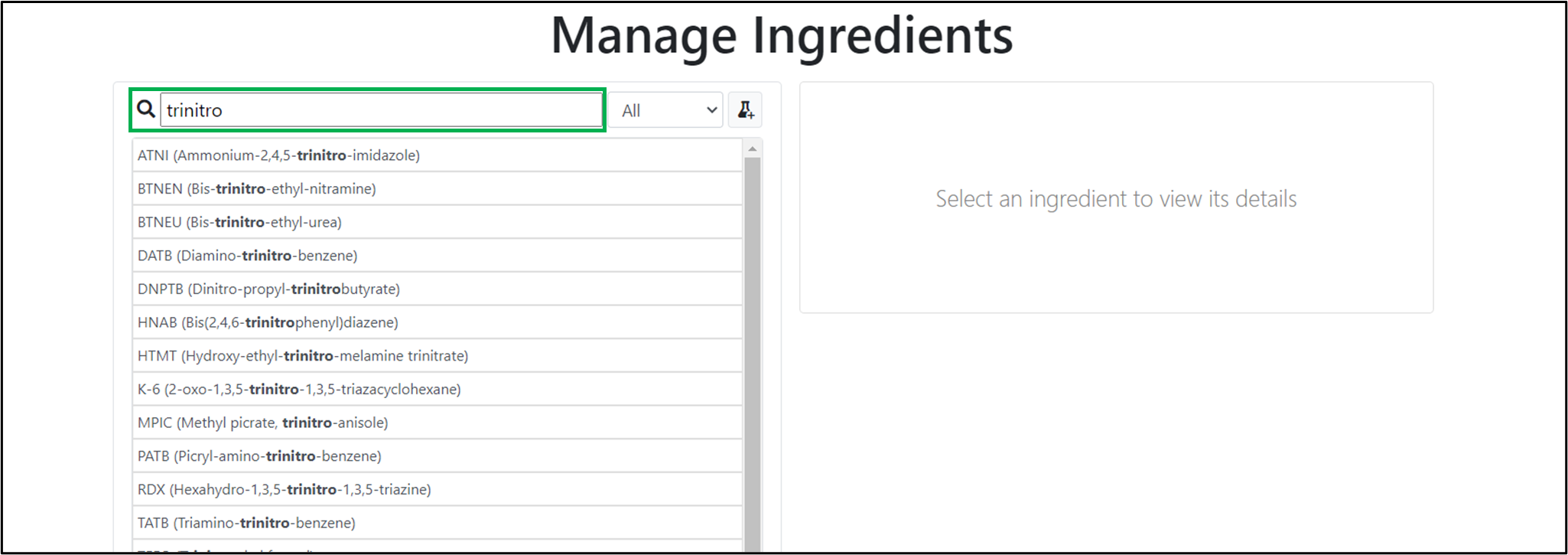
Ingredient search functionality.
After selecting an ingredient from the list, its properties will appear in a card, on the right of the page.
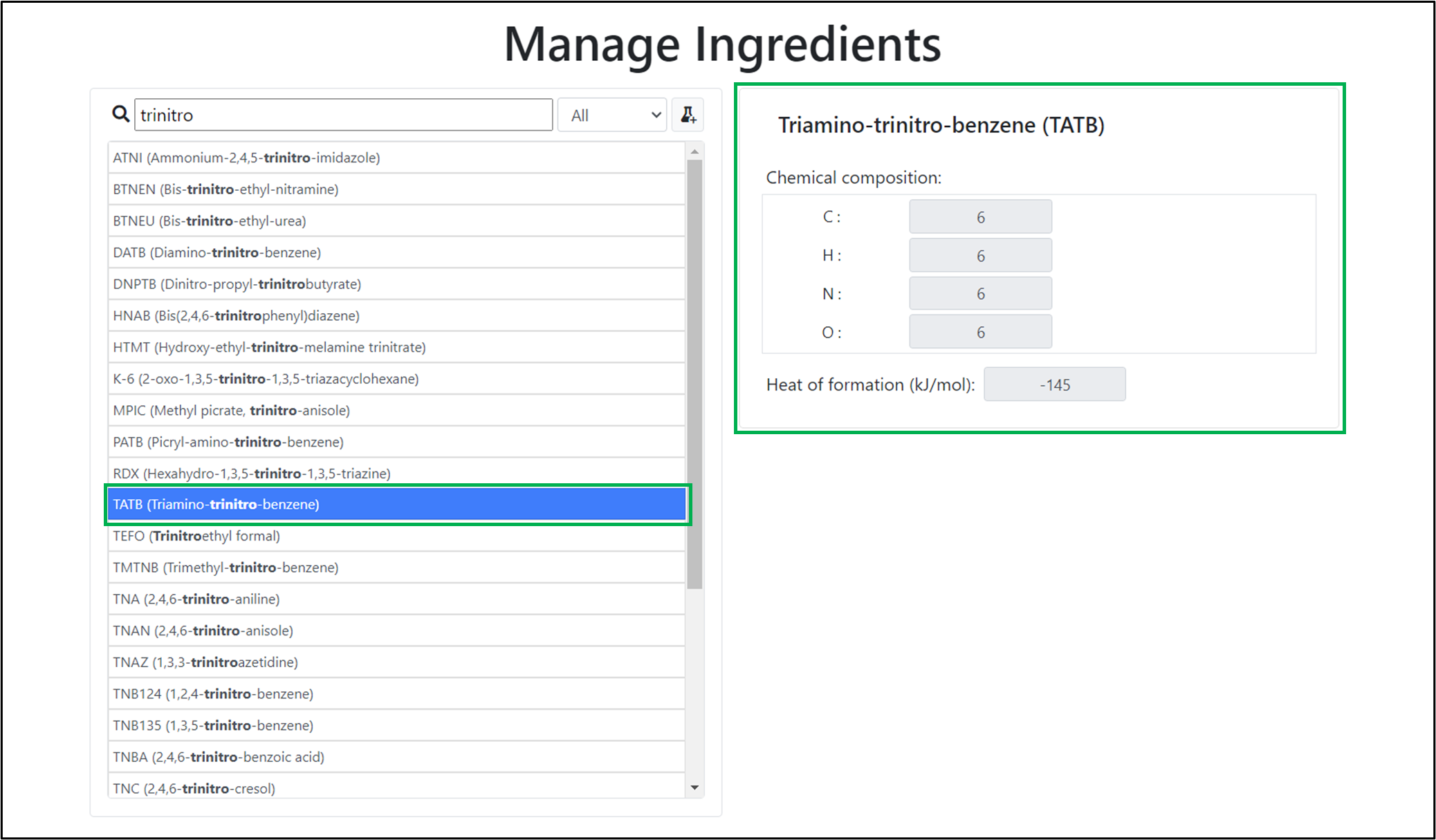
Viewing ingredient details.
Creating custom ingredients from scratch
To create a new custom ingredient from scratch,
- Click on the ‘New ingredient’ button
- Click on ‘Create from scratch’
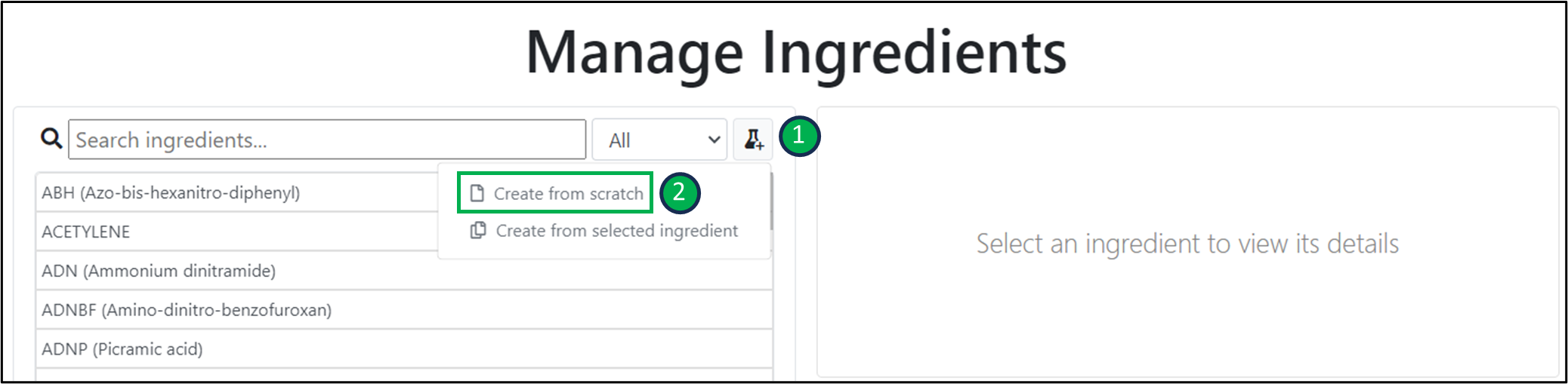
Creating a custom ingredient from scratch.
In the ‘New ingredient’ window that opens:
- Insert a descriptive name for the new ingredient
- Insert an abbreviation for the new ingredient. This should be in capital letters and unique from other ingredients, i.e. the same abbreviation cannot be used for two ingredients.
- Specify the chemical composition of the ingredient by:
- Using the dropdown menu to select a chemical element
- Specifying the number of atoms of the corresponding element
- Clicking on ‘+ Add element’ to add another element, and repeating steps a. and b., as required.
- Specify the heat of formation of the ingredient, in kJ/mol.
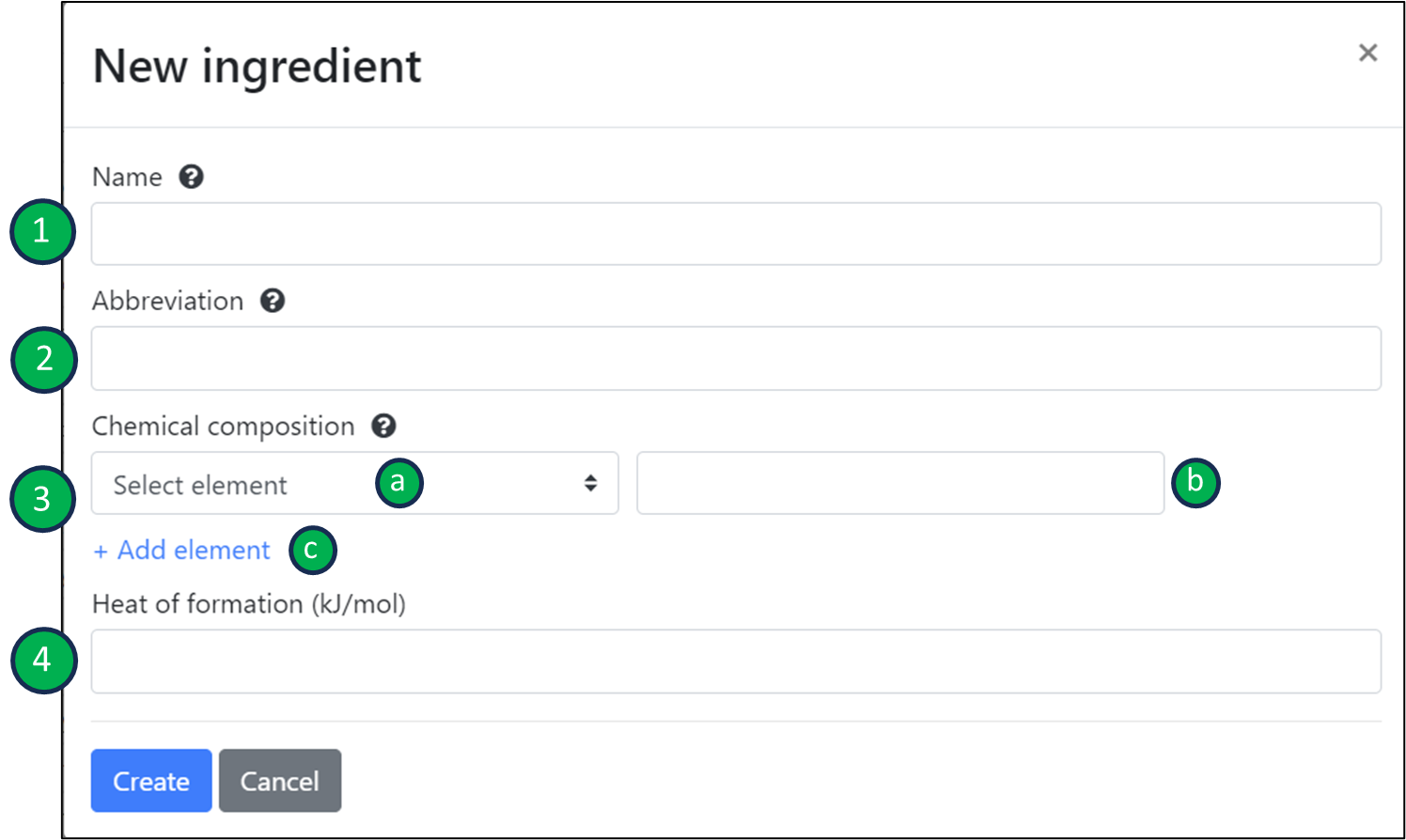
Specifying the properties of the new ingredient.
To delete any chemical elements which are not needed in the chemical composition, click on the corresponding delete button.
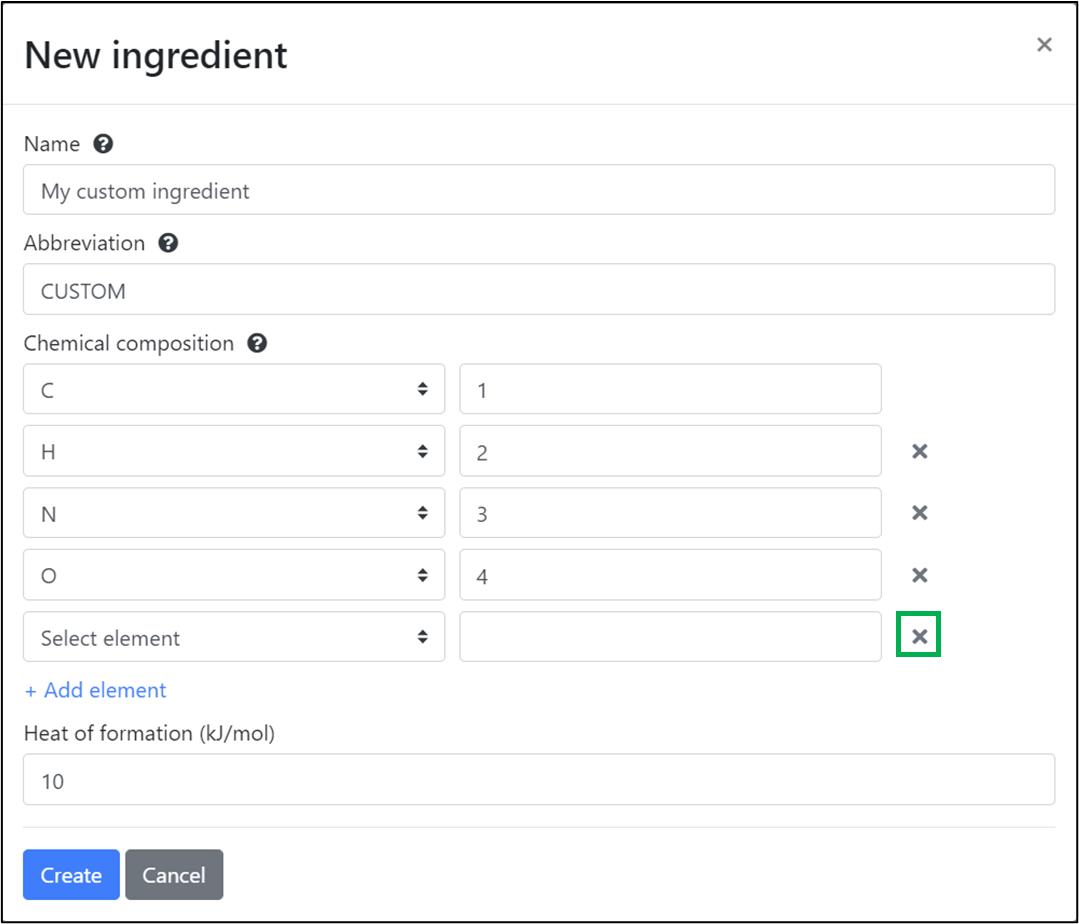
Deleting a chemical element entry in the new ingredient window.
Click on the ‘Create’ button, to create your new custom ingredient.
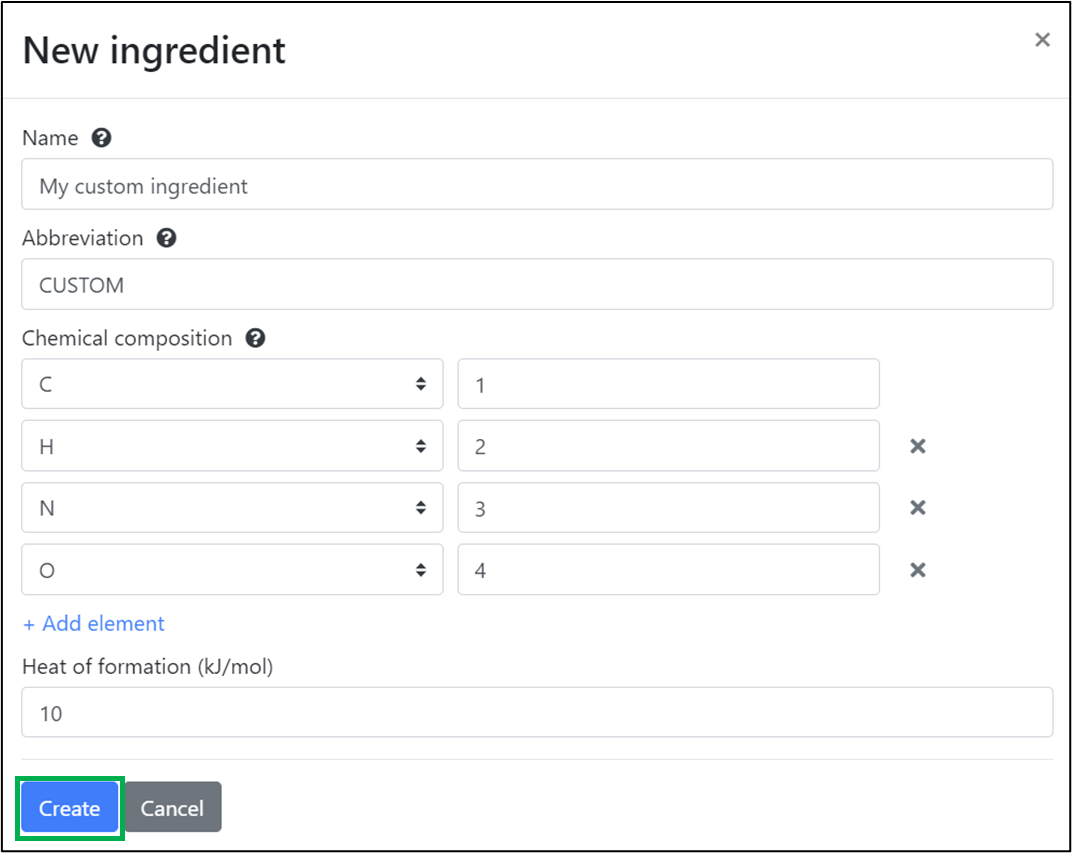
Creating new custom ingredient.
Creating custom ingredients from existing ingredients
You can use existing ingredients as a base for creating new ingredients:
- Select the existing ingredient on which the new ingredient will be based
- Click on the ‘New ingredient’ button
- Click on ‘Create from selected ingredient’
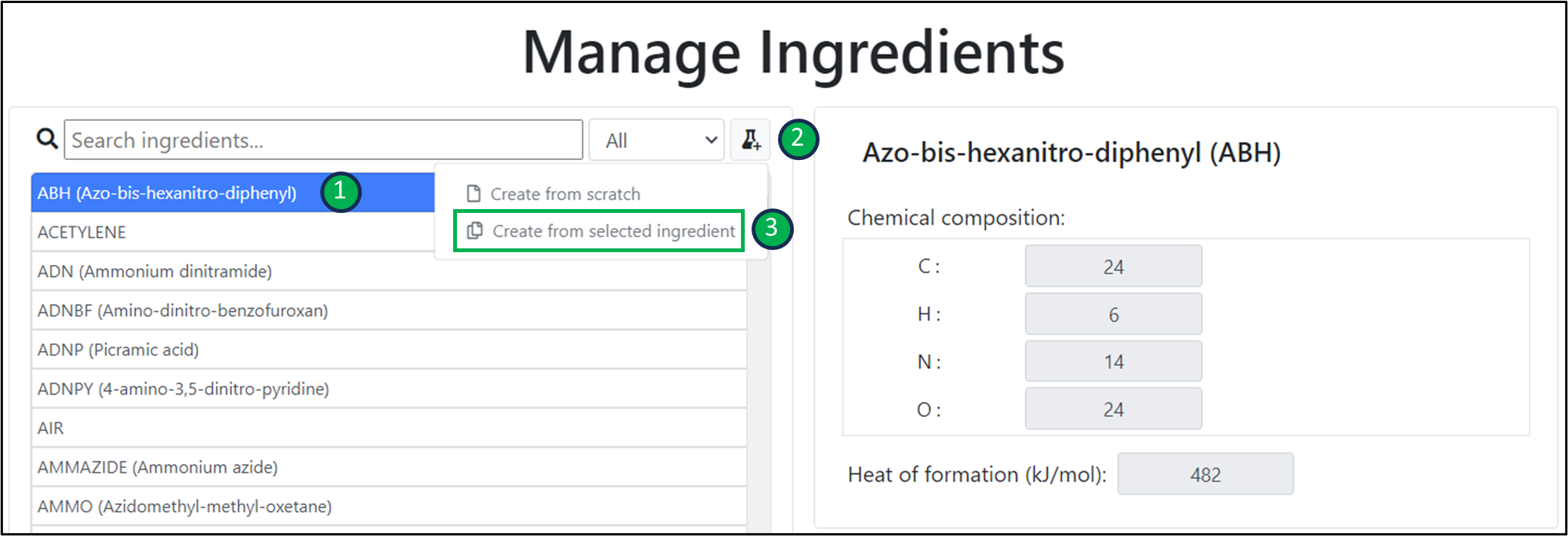
Creating a custom ingredient from an existing ingredient.
The ‘New Ingredient’ window will now include pre-filled properties, corresponding to the existing ingredient which was selected. By default, the name field will have the prefix ‘Copy of ’ and the abbreviation field will have the suffix ‘_COPY’. All other properties are identical to the selected existing ingredient. Modify the ingredient properties, as required, and then click on ‘Create’.
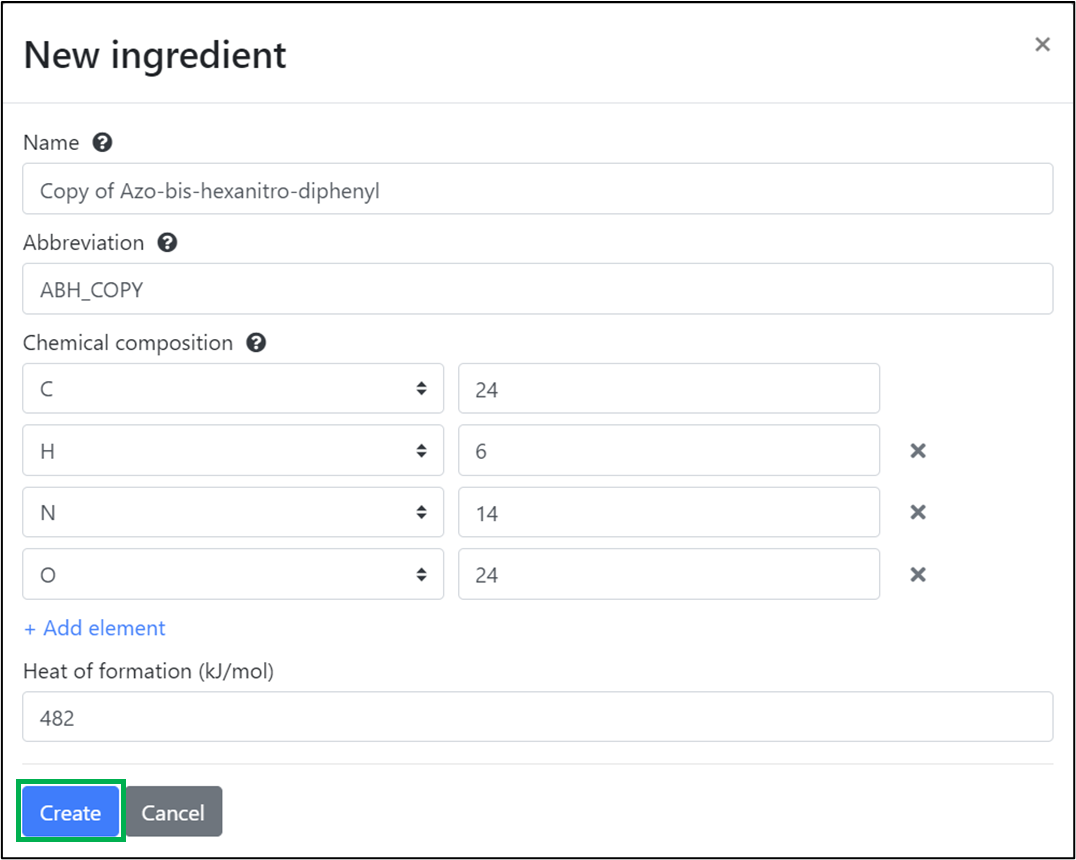
Creating a custom ingredient from an existing ingredient results in pre-filled properties.
Editing custom ingredients
To edit the properties of a custom ingredient:
- Select the custom ingredient from the ingredients list. To easily locate your custom ingredient, you can either:
- Use the search bar to search for a keyword, or
- Use the dropdown menu to filter all ‘Custom’ ingredients
All custom ingredients are displayed with a badge labelled with ‘Custom’ for easy recognition
- Click on the dropdown button for the selected ingredient.
- Select the ‘Edit custom ingredient’ option.
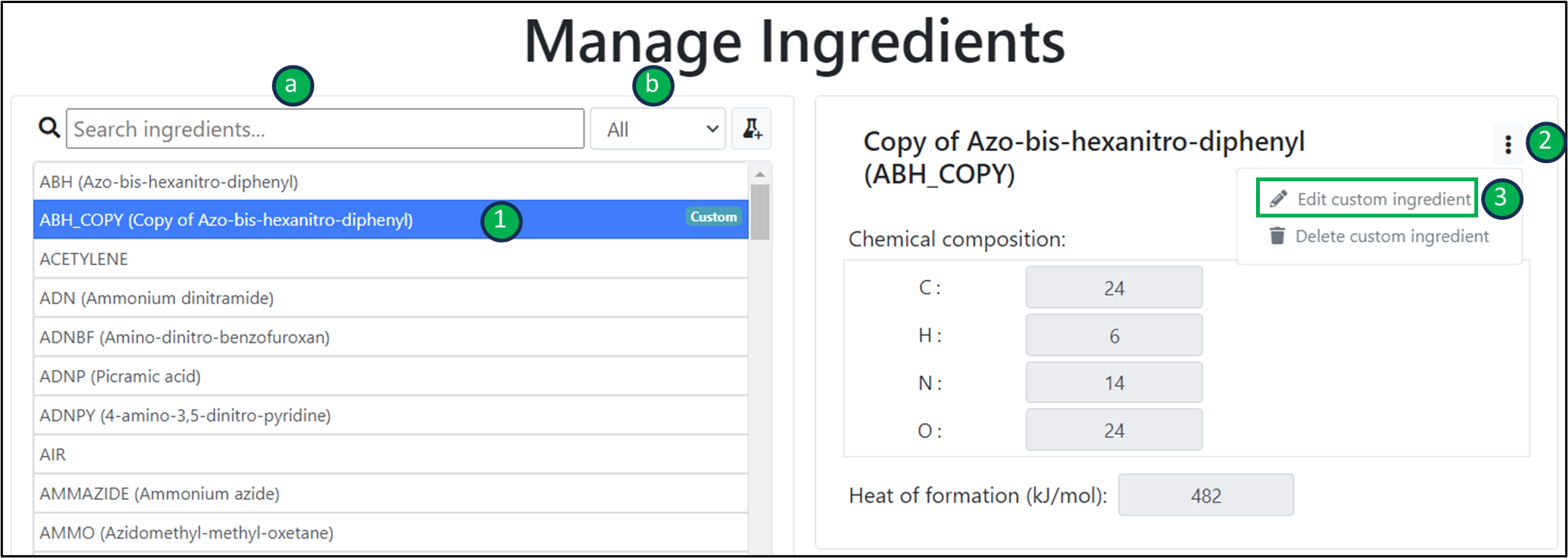
Editing a custom ingredient.
Make any necessary changes in the ‘Edit ingredient’ window and click on ‘Save’.
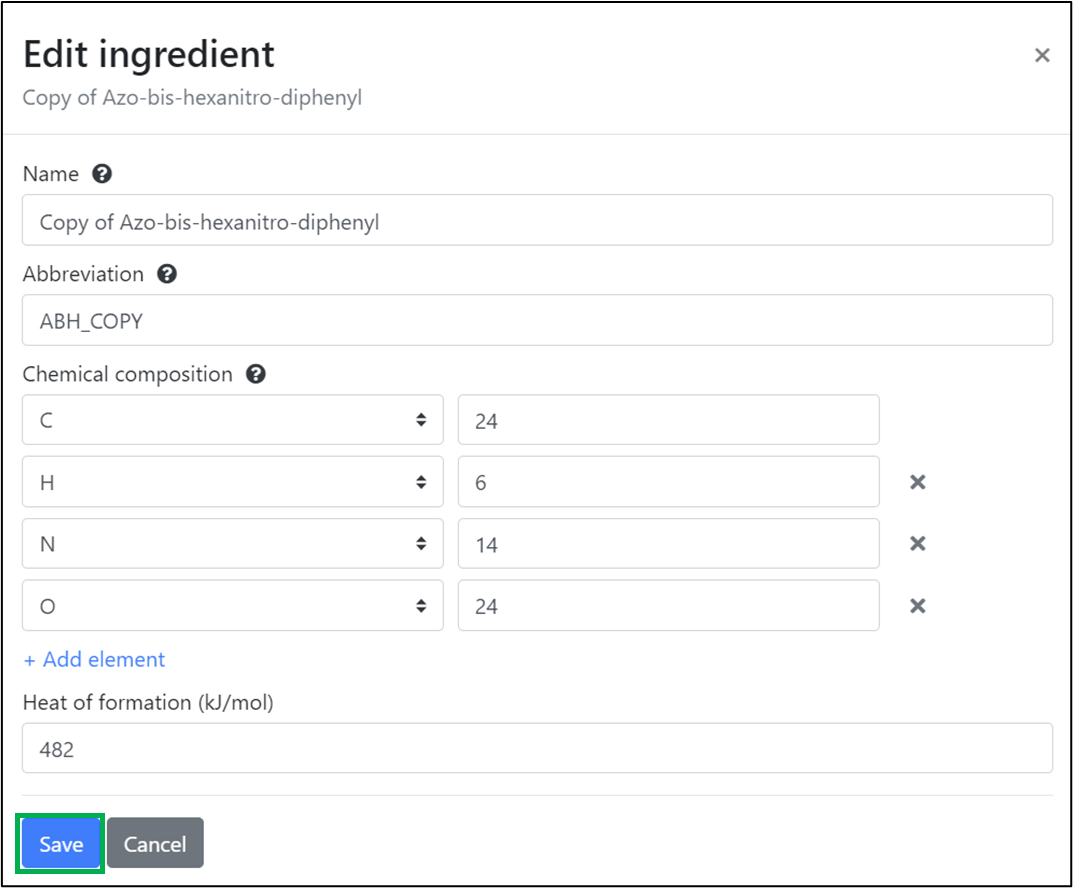
Editing the properties of a custom ingredient.
Please note that built-in (i.e. non-custom) ingredients cannot be edited.
Deleting custom ingredients
To delete a custom ingredient:
- Select the custom ingredient from the ingredients list.
- Click on the dropdown button for the selected ingredient.
- Select the ‘Delete custom ingredient’ option.
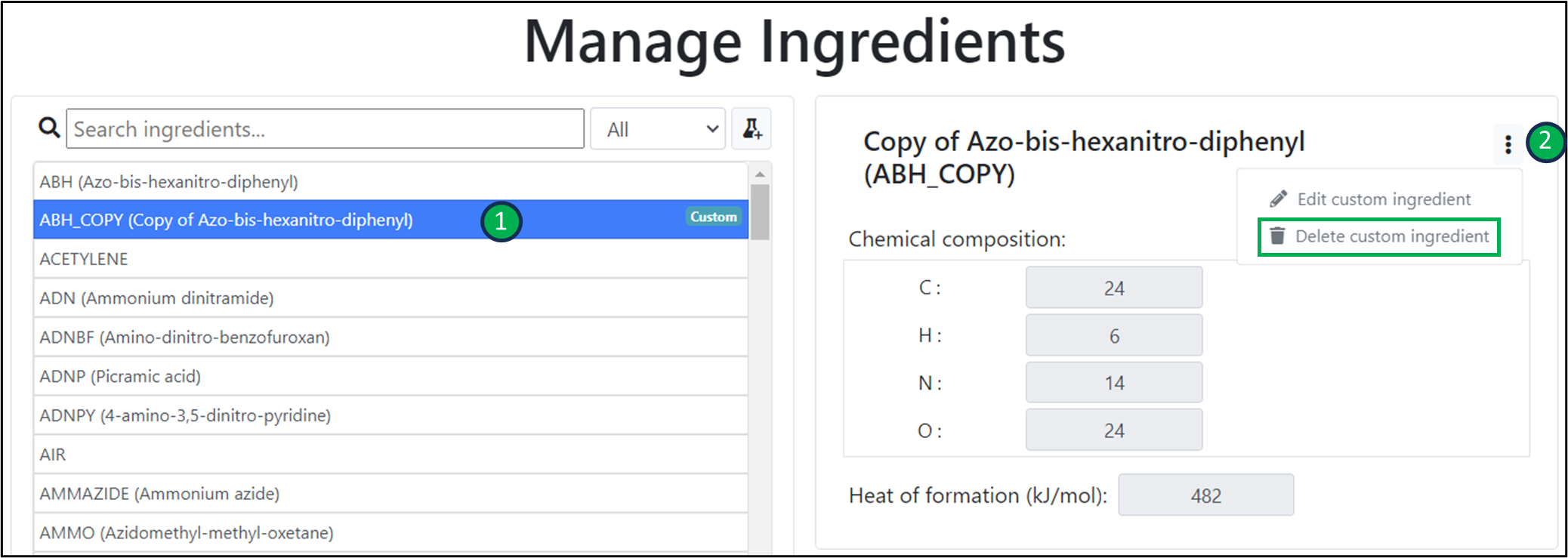
Deleting a custom ingredient.
In the ‘Delete ingredient window which opens, click on the ‘Confirm’ button:
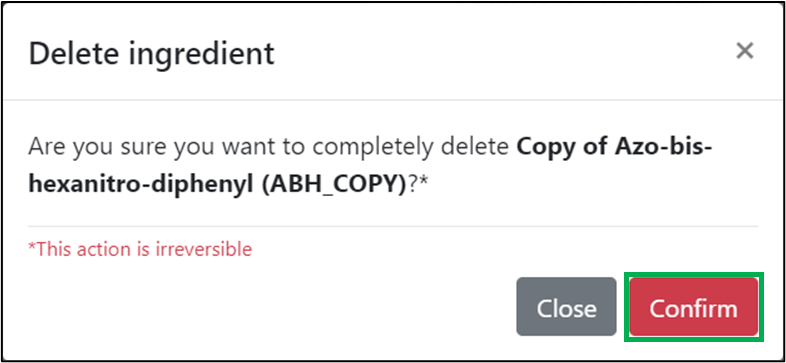
Confirming the deletion of a custom ingredient.
Please note that built-in (i.e. non-custom) ingredients cannot be deleted.
Navigating back to the ‘Simulations’ page
When finished with the ‘Manage ingredients page’, click on the ‘Back’ button to return to the ‘Simulations’ page.
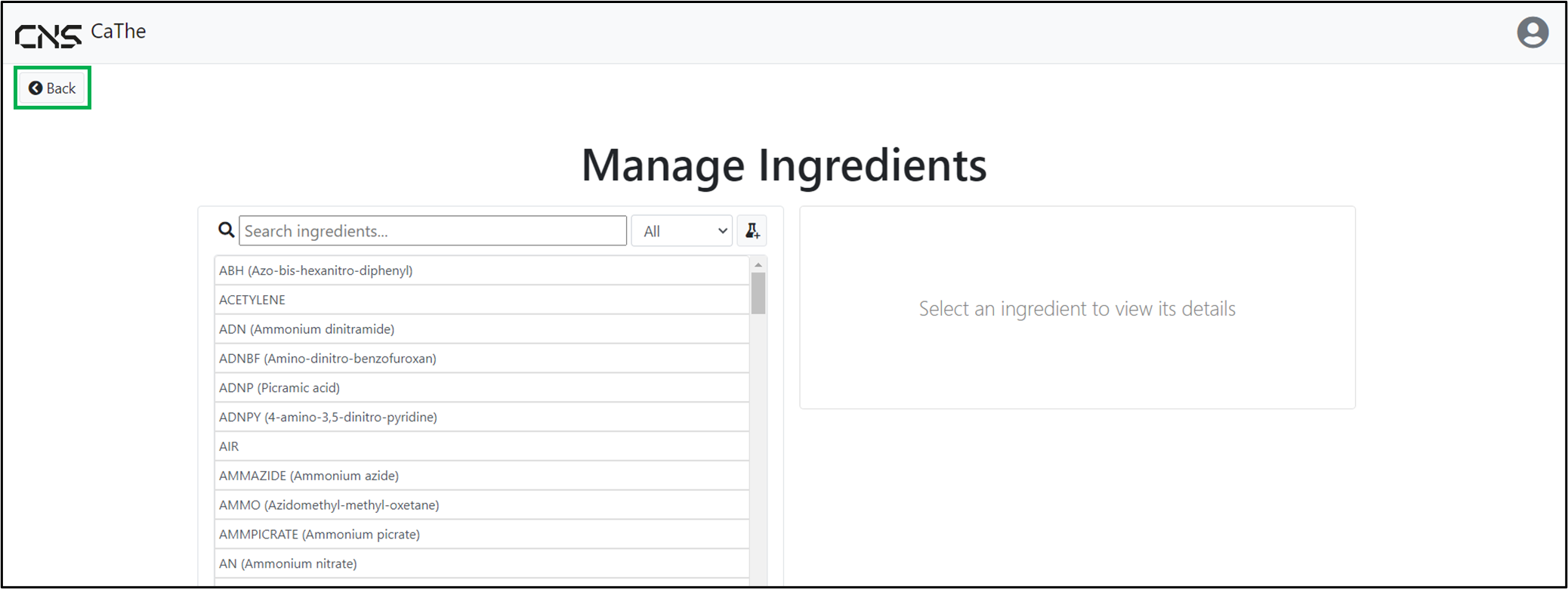
Returning to the ‘Simulations’ page.

We’d be happy to help. Get in touch today.

Official Greek distributor for Cambridge Numerical Solutions
COMPANY
Corporate Name:
Cambridge Advanced Simulations S.A.
Legal Form: Single Member S.A.
REGISTRATION
GEMI No: 188724401000
Athens