Cathe: Simulation from Scratch
Overview
This tutorial provides a step by step guide to setting up and running a thermochemical equilibrium calculation in ANFO within the CaThe module of the Cambridge Numerical Solutions (CNS) platform.
Accessing the ‘Simulations’ page
After logging in to your CNS account, you will be directed to your ‘Modules’ page which will display the list of CNS modules that you are subscribed to. Clicking on the ‘CaThe’ module will take you to the corresponding ‘Simulations’ page.
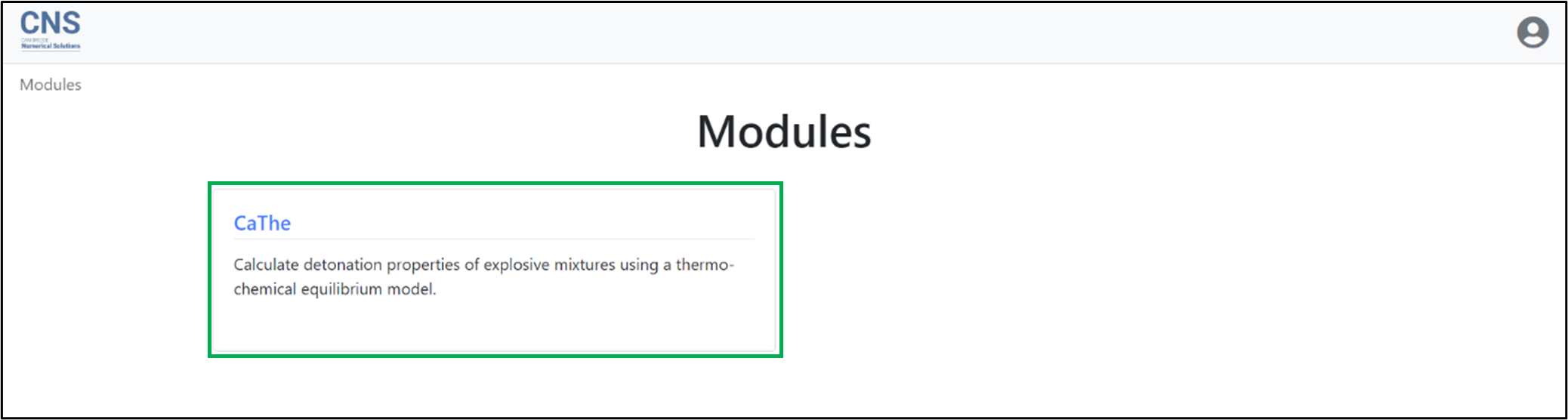 The ‘Modules’ page of your CNS account.
Creating the simulation
On the ‘Simulations’ page, click on the ‘New simulation’ button to create a simulation within the ‘Default’ folder.
Note: For more information on creating and managing simulations, see the tutorial ‘Simulation management‘.
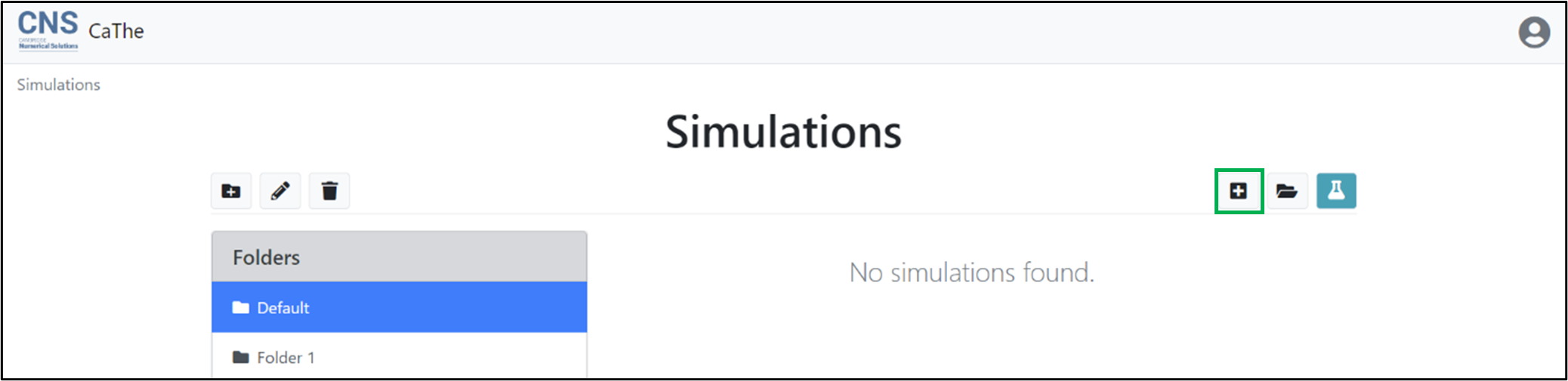
Creating a new simulation within the ‘Default’ folder.
In the ‘New simulation’ window which opens:
- In the ‘Simulation name’ field, enter the name that you would like to use for the simulation (e.g. ‘ANFO’).
- Select ‘None’ in the ‘Use simulation template’ dropdown menu. For more information on simulation templates, see the tutorial ‘Creating a simulation from a template’.
- Click on the ‘Create button’.

Create simulation window.
Your newly created simulation project will now appear within your ‘Default’ folder. Click on the simulation name to enter the ‘Settings’ page for the simulation.
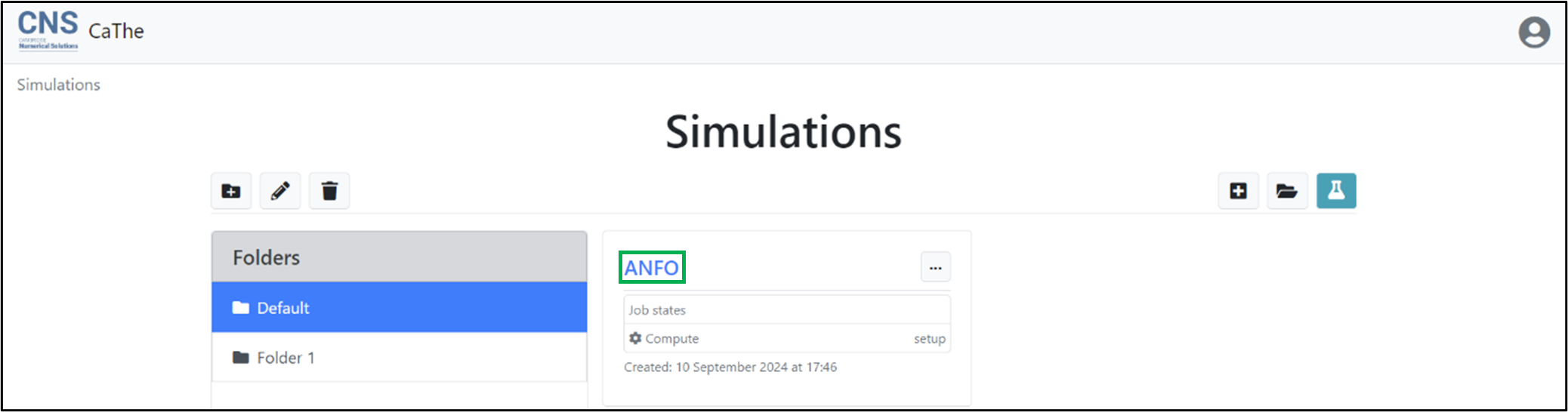 Accessing the ‘Settings’ page for a simulation.
Configuring the simulation
The landing page of a new simulation in the CaThe module includes a list of all ingredients that can be added to the material mixture. These are displayed in the following format: “ABBRV. (Full name)”
The list includes CaThe’s default ingredients, as well as all user-defined custom ingredients. For more information on how to create custom ingredients, see the tutorial ‘Creating and managing Custom ingredients’.
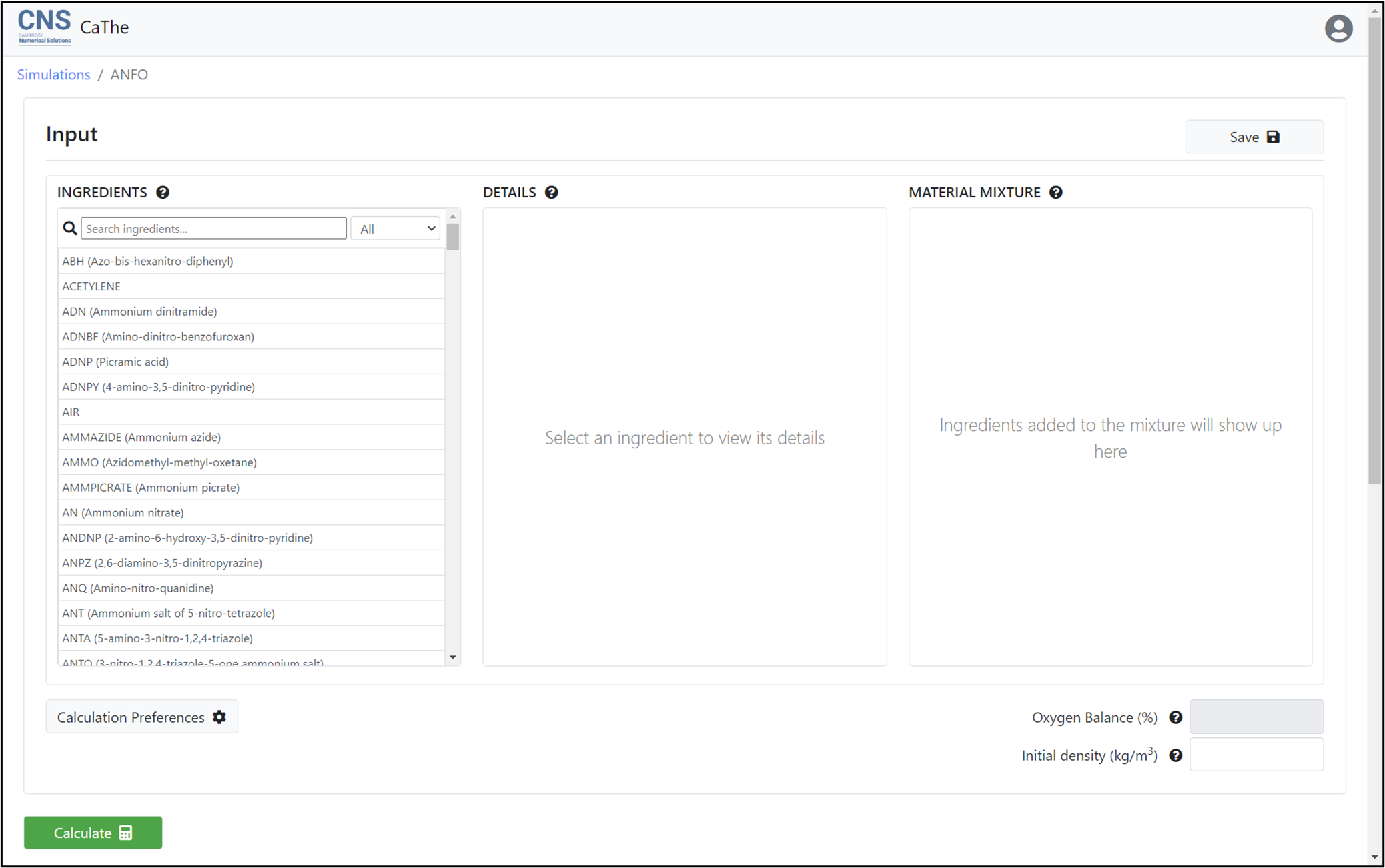 CaThe landing page.
Searching for ingredients
Use the search bar to search for ingredients from the list. For example, to find Ammonium nitrate, type ‘ammonium’.
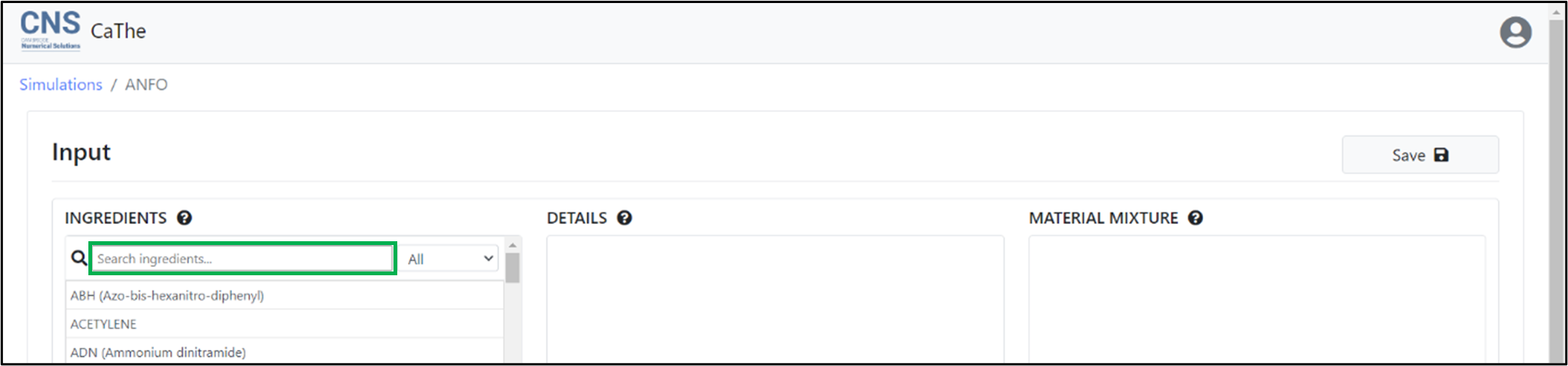 Searching for ingredients.
Selecting ‘AN (Ammonium nitrate)’ from the search results will display the corresponding material properties in the ‘Details’ panel.
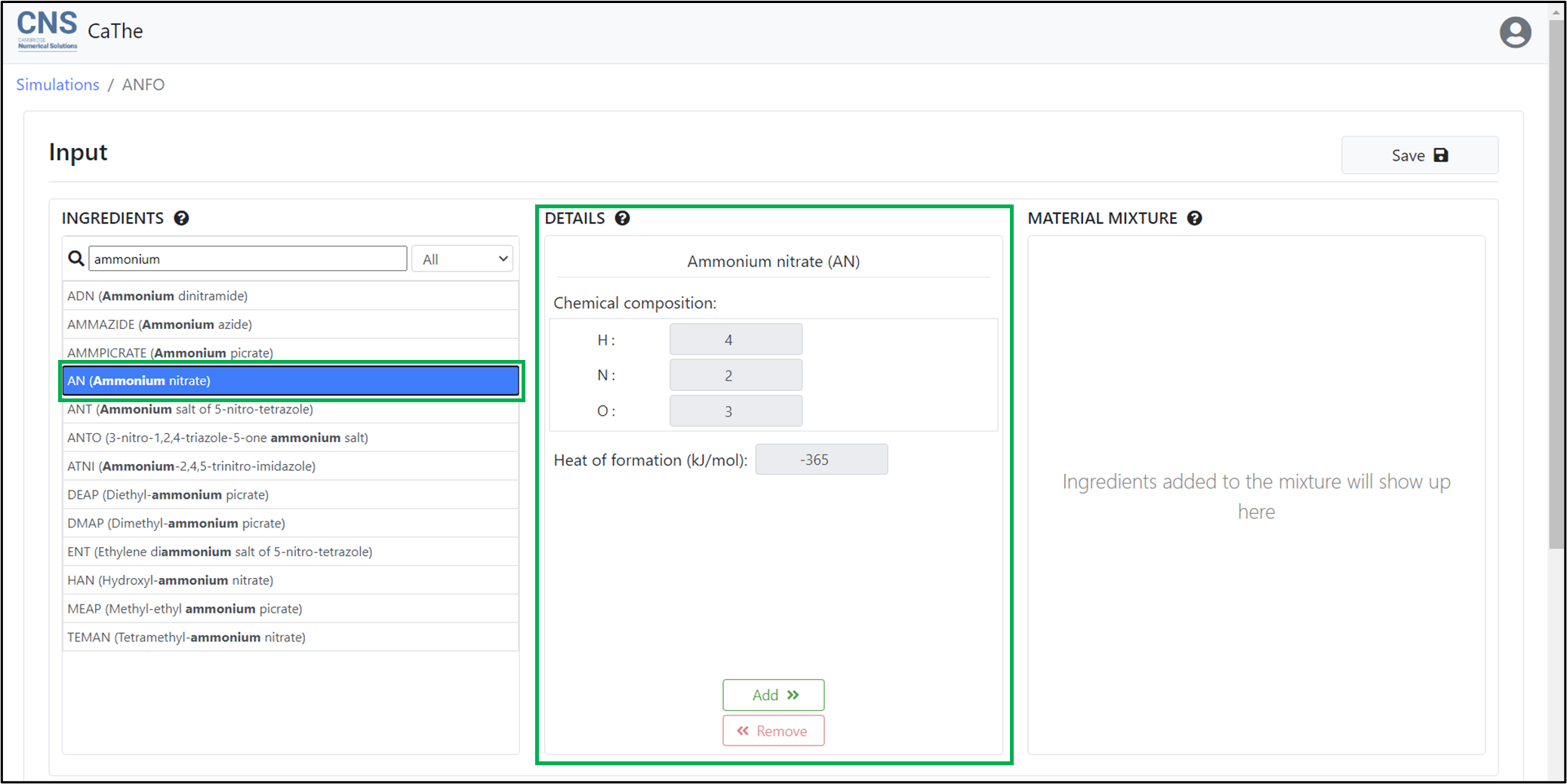 Selecting an ingredient.
Adding ingredients to the mixture
To add Ammonium nitrate to the material mixture, click on the ‘Add’ button. The ingredient will now appear in the ‘Material mixture’ panel, on the right. A green badge labelled with ‘Added’ will also appear on the same ingredient in the ‘Ingredients’ panel, on the left. Moreover, this ingredient will no longer be clickable, and will be ‘greyed out’ in the ‘Ingredients’ panel.
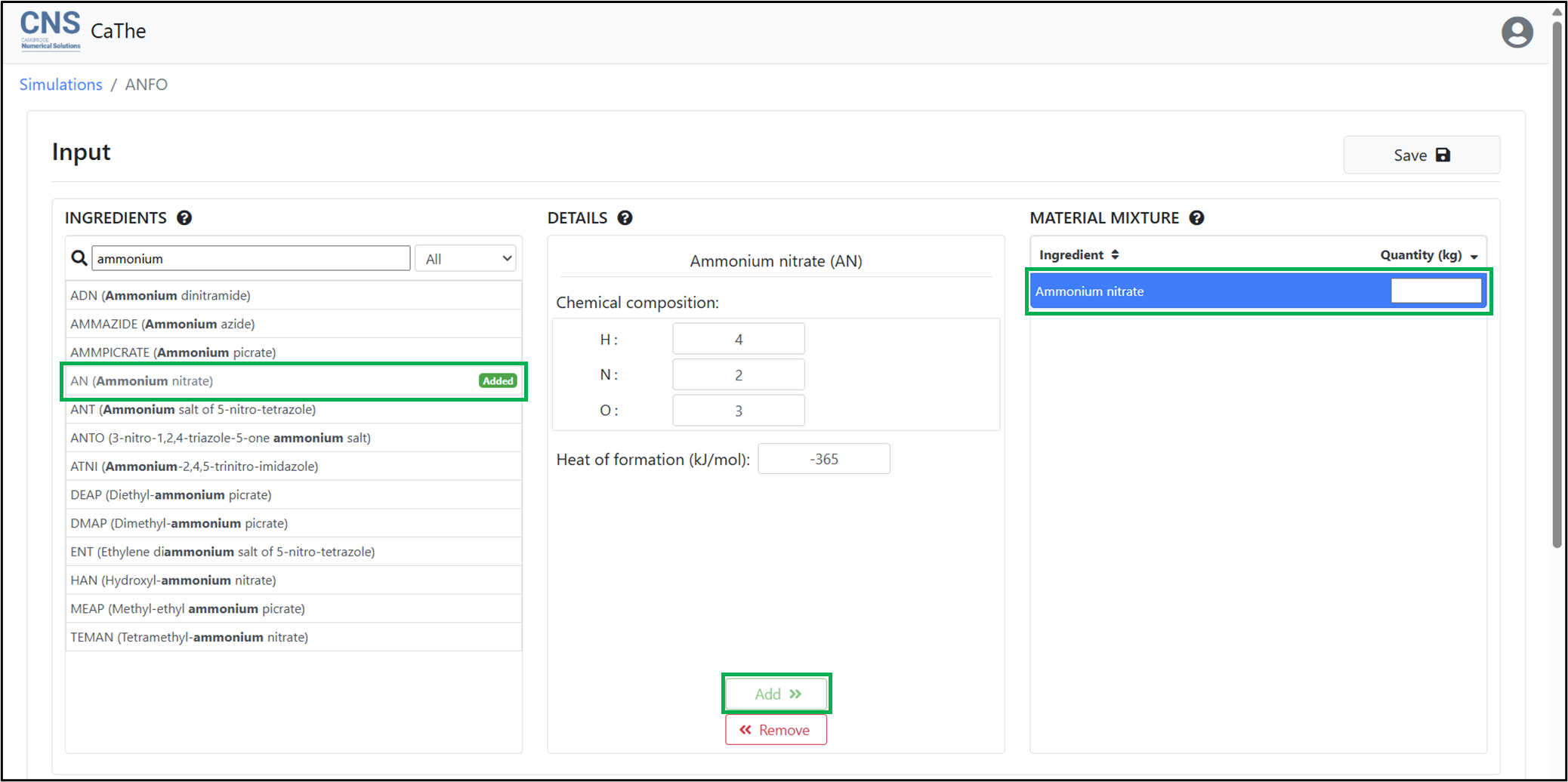 Adding an ingredient to the material mixture.
Repeat the same steps, to add ‘Fuel oil’ to the material mixture:
- Search for ‘fuel oil’ in the search bar.
- Select ‘Fuel oil’ from the search results.
- ‘Add’ the ingredient to the mixture.
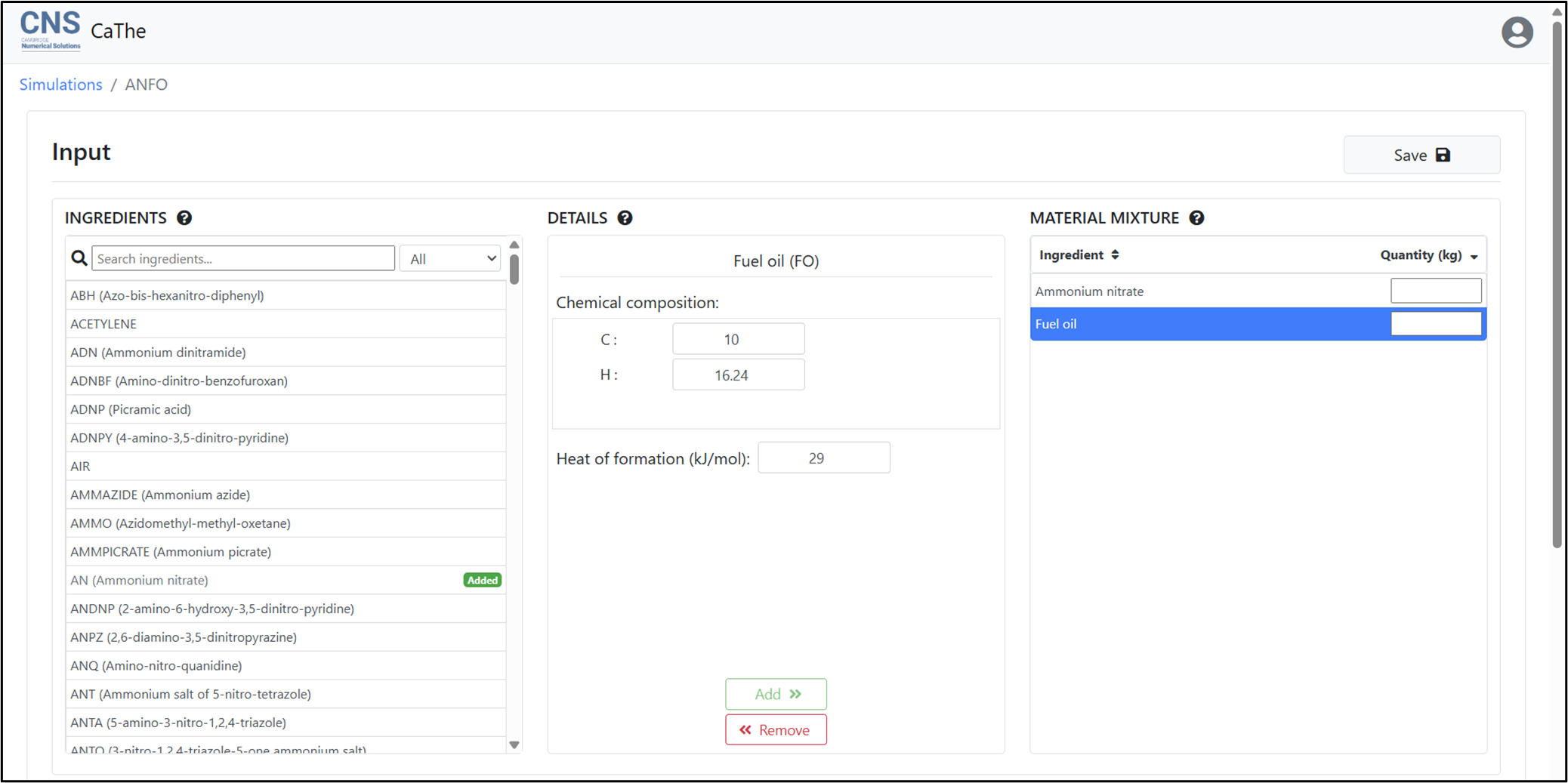 Adding a second ingredient to the material mixture.
Removing an ingredient
To remove an ingredient from the material mixture, make sure this ingredient is selected under the ‘Material mixture’ panel and click on the ‘Remove’ button. In the example below, ‘Air’ was accidentally added to the ANFO mixture.
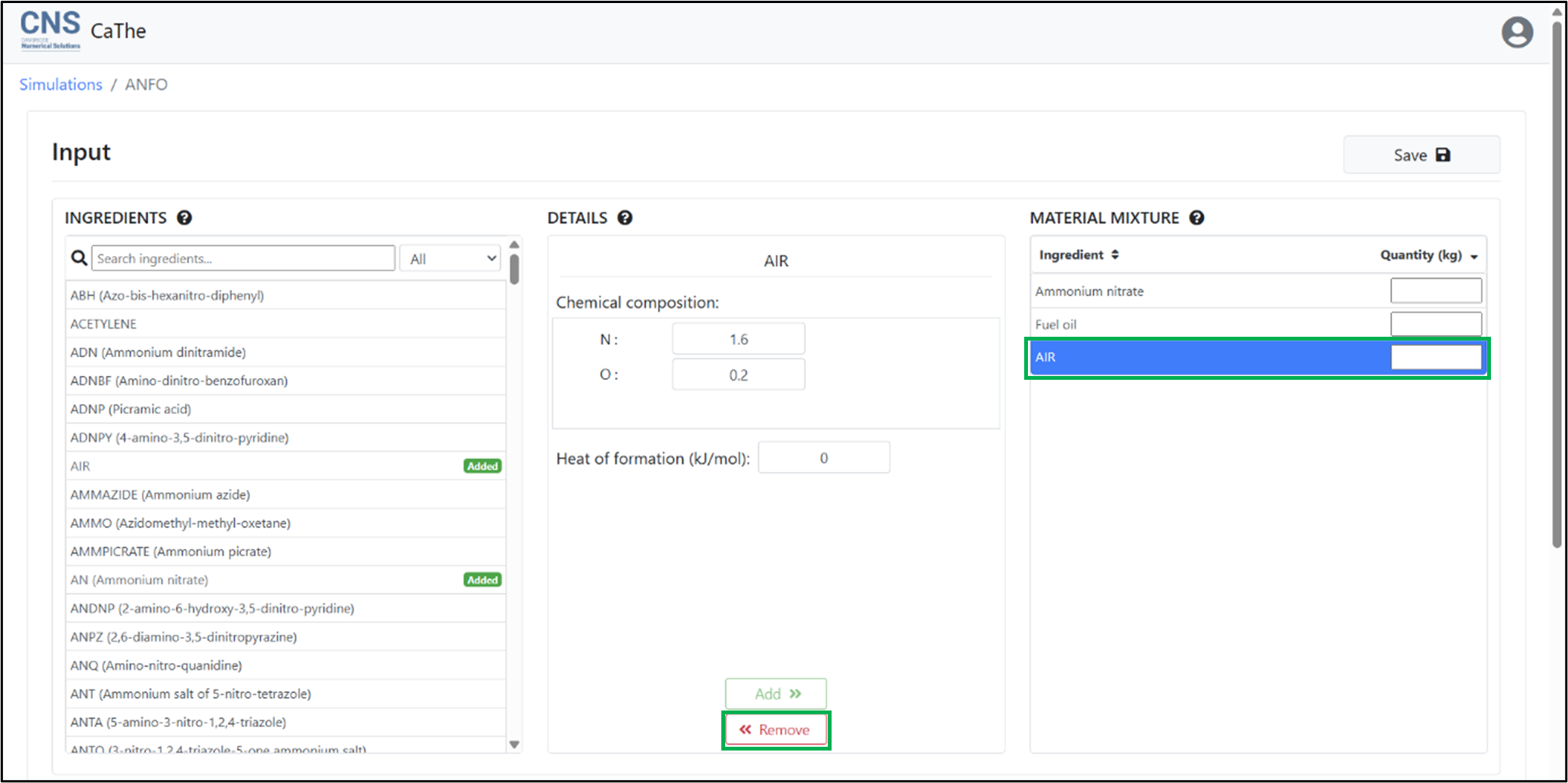 Removing an ingredient from the material mixture.
Setting the simulation inputs
- Fill in the corresponding quantity of each ingredient in the material mixture (Note: it is only the ingredients mass ratio which is significant, not the absolute values of the quantities).
- Once the quantities of all ingredients are filled-in, the oxygen balance of the mixture will be displayed. Note: the oxygen balance updates automatically every time the material mixture changes.
- Fill in the initial density of the explosive mixture, in kg/m3.
 Setting the remaining simulation inputs.
Saving the simulation settings
To save the current simulation settings, click on the ‘Save’ button in the top right corner of the screen. This can be done at any time during the configuration stage.
 <spanstyle=”font-size: small;”>Saving the simulation settings.
Modifying ingredients properties
In certain cases, the properties of an ingredient need to be modified in a simulation, without changing the corresponding properties saved in the database. This might be useful for example, if using a slightly different fuel oil formulation. Alternatively, if one is doing a parameter study of how the heat of formation of one ingredient affects the detonation properties of the mixture.
CaThe allows the local modification of ingredient parameters in individual simulations, by changing the corresponding settings in the ‘Details’ panel:
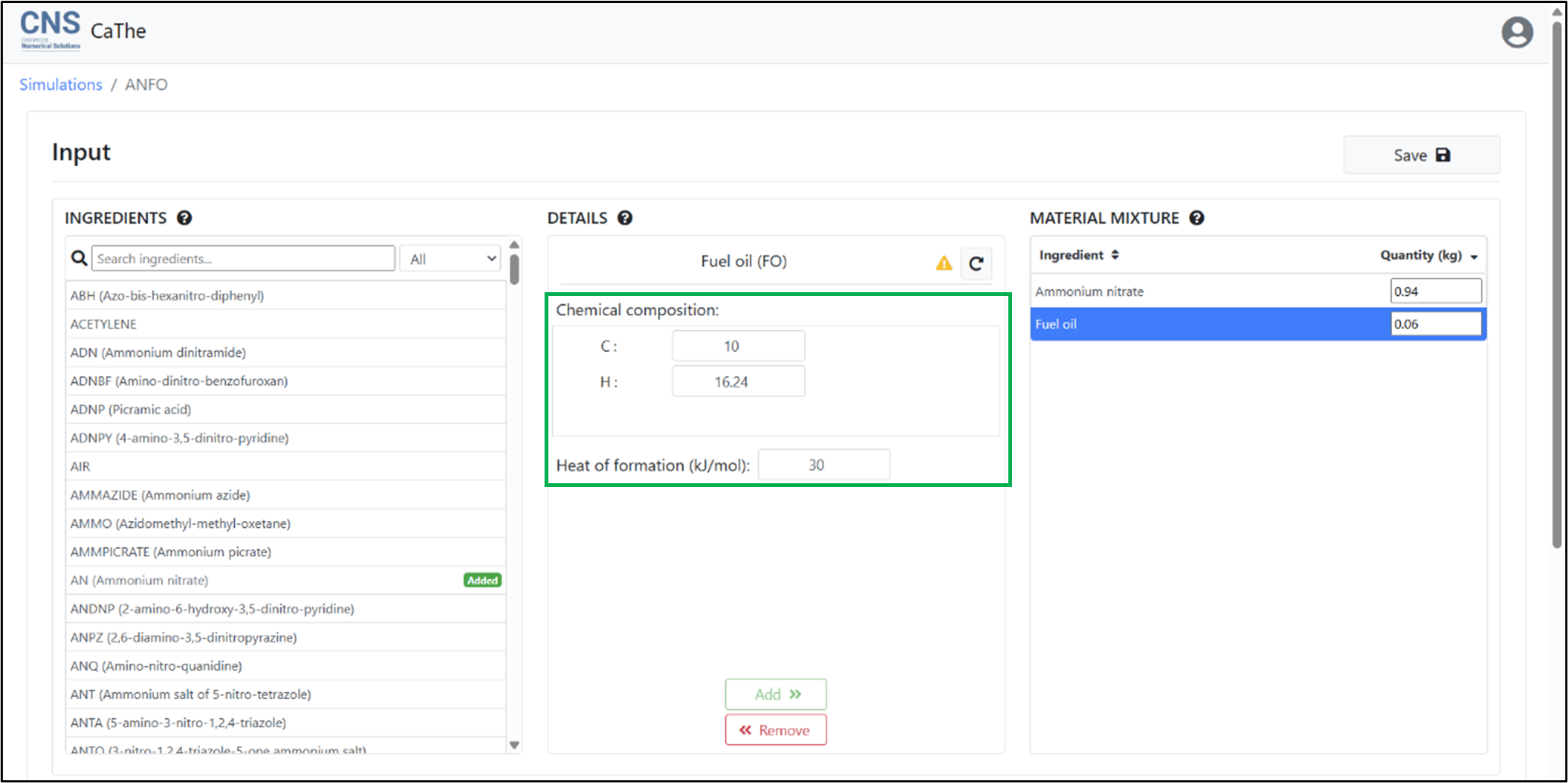 Modifying the local properties of an ingredient.
An orange warning symbol will appear in the top right corner of the details panel to indicate that the properties of an ingredient have been changed.
Note that modifying the properties of an ingredient is only possible for ingredients added to the material mixture. To revert local ingredient properties back to the default properties saved in the database, click on the ‘Reset properties to default’ button.
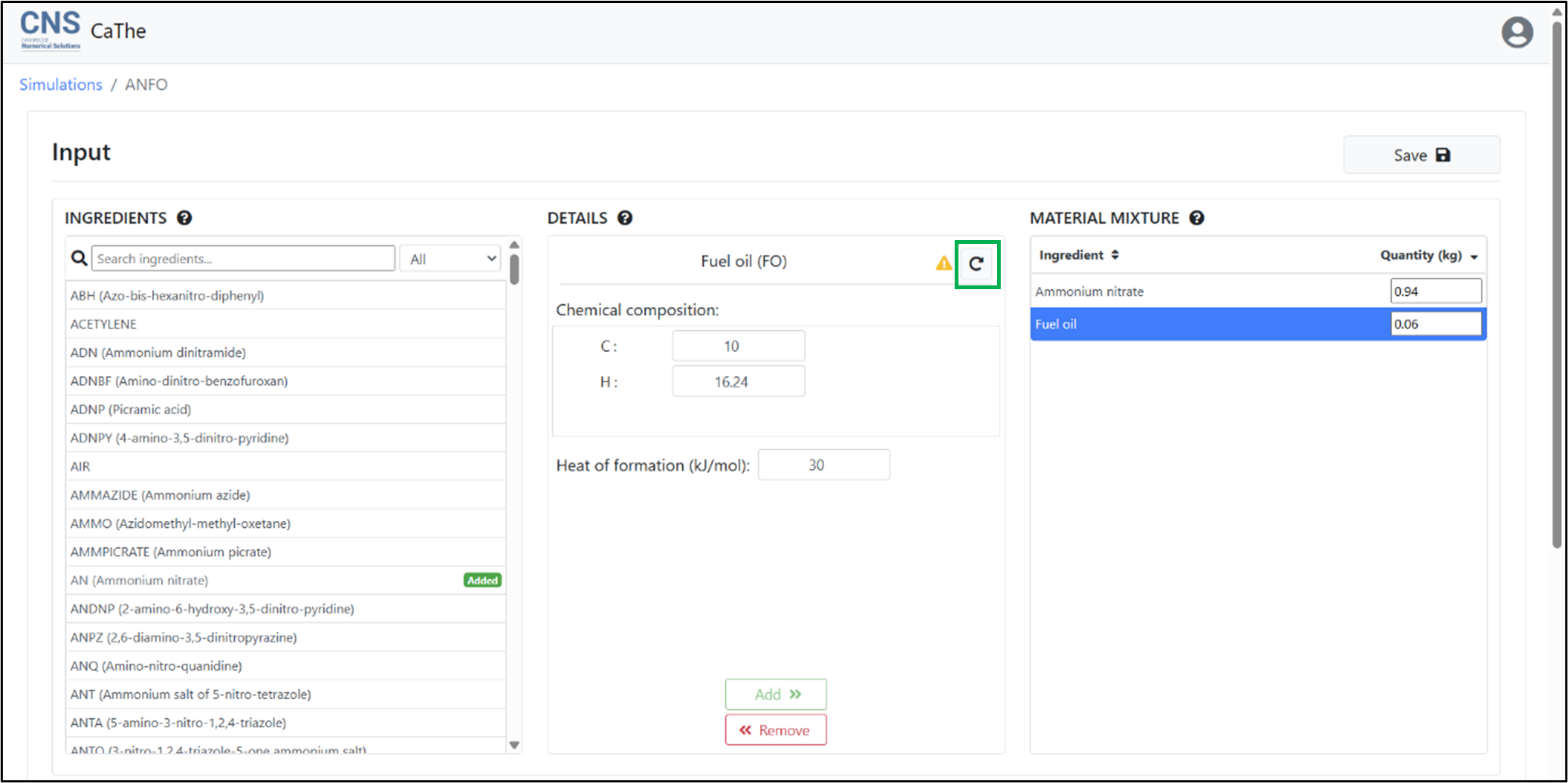 Reverting changes to the local properties of an ingredient.
Please note that changes made to ingredient properties using the above method will only affect the current simulation and any such changes will only be saved if the ‘Save’ button is clicked. When an ingredient whose parameters have been modified is removed from the material mixture, its properties are automatically reverted to default.
For information on how to change the properties of custom ingredients globally, see tutorial ‘Creating and managing Custom ingredients’.
Setting calculation preferences
The Calculation Preferences window allows you to customize various settings for your calculations. To access this section, click on the ‘Calculation Preferences’ button.
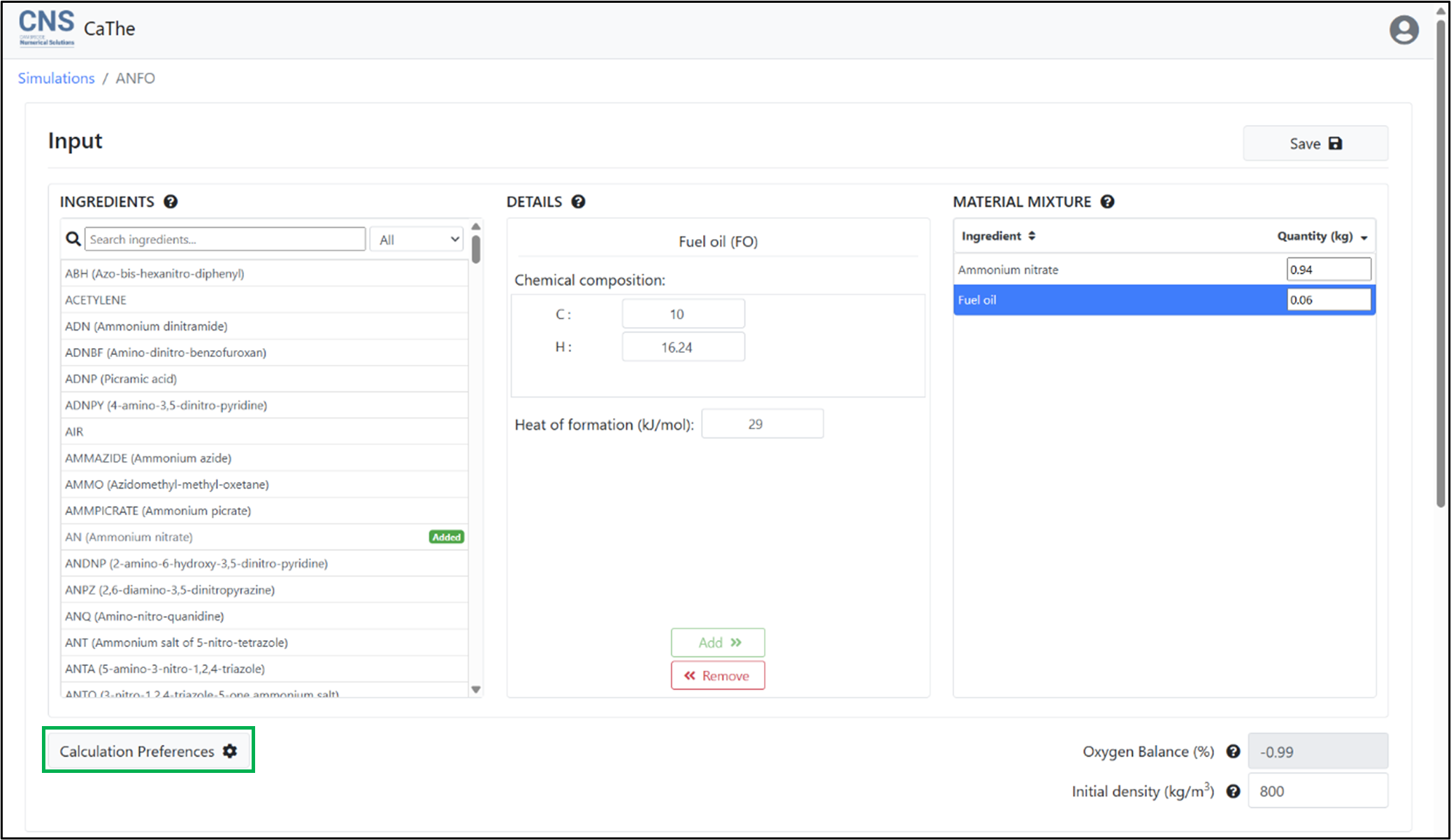 Accessing the ‘Calculation Preferences’ window.
- Calculation settings:
- Energy release: Check this box to calculate energy release down to 0.1 MPa, in addition to the default 100 MPa. If this option is disabled, the energy release calculation will be limited to 100 MPa.
- Percentage of inert metals: For material mixtures containing aluminium (Al) or iron (Fe), specify the weight percentage of each metal that will remain inert during the calculation. You can adjust this by either entering a value in the input field, or using the slider. Any remaining metal that is not specified as inert, will be treated as reactive and will form metal oxides.
- Output unit settings: Choose your preferred units for density and heat of formation by selecting the appropriate radio buttons
- Output options: Check the corresponding boxes to display REE and/or RBS in the results. These values are calculated relative to reference ANFO at an initial density of 800 g/cc.
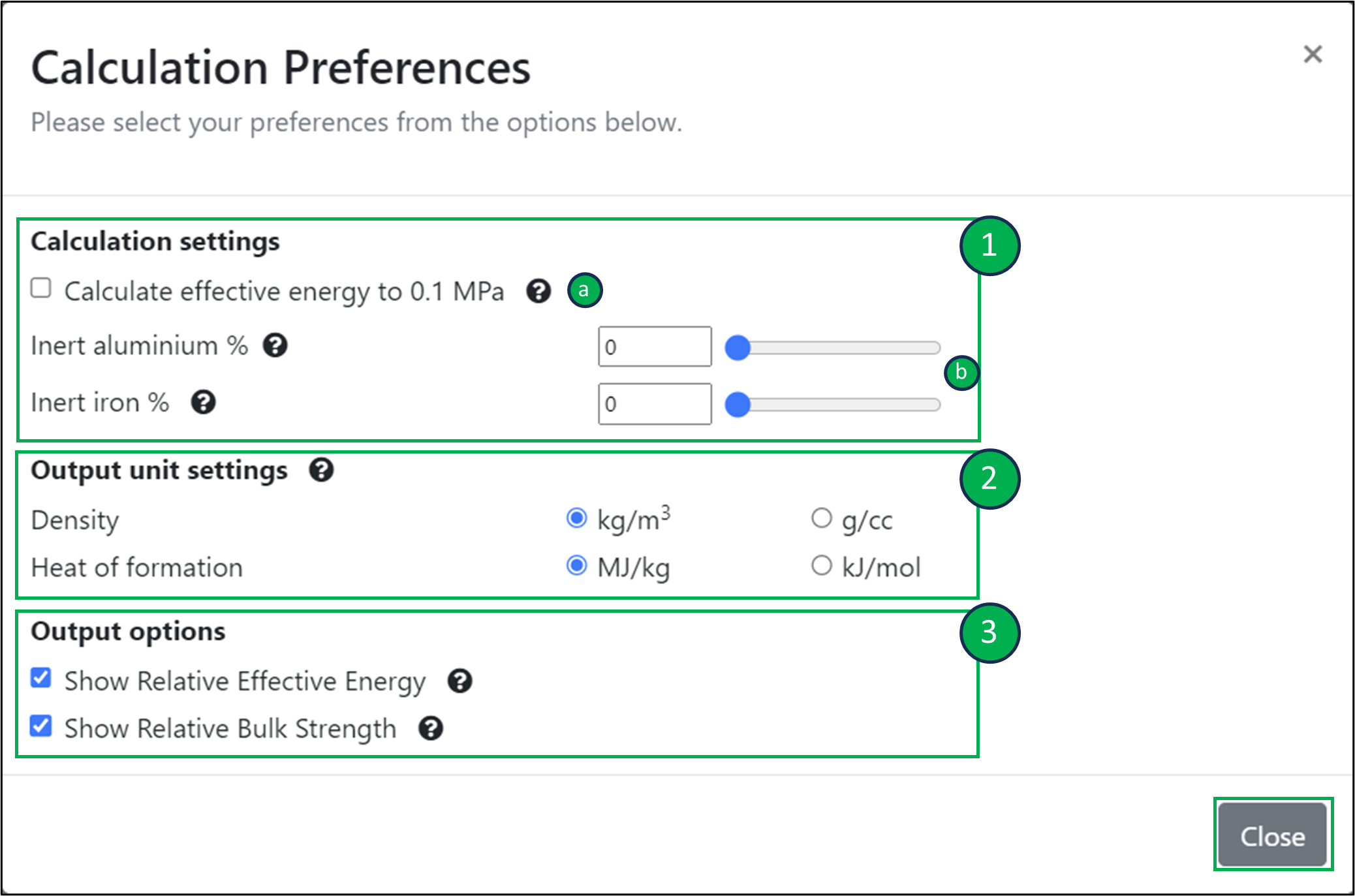 The ‘Calculation Preferences’ window.
Running the simulation
To run the simulation, click on the ‘Calculate’ button. Information about the state of the simulation will then be shown in the status bar.
 <spanstyle=”font-size: small;”>Running the simulation.
 Simulation status bar.
Details about some common status updates are given below:
| Status | Details |
| Checking settings… Please do not close this window | Checks are performed to make sure that all required settings have been provided, and that the parameter inputs are valid. Note: if the browser window is closed at this stage, the simulation will not be executed. |
| Preparing calculation… | The configuration settings have been verified. These are now being sent to the compute machine to start the calculation. |
| Calculating CJ state… | CaThe is calculating the CJ state for the given explosive mixture. |
Calculating isentrope…  |
CaThe is calculating the isentropic expansion of products behind the CJ state. During this calculation a bar is displayed on-screen to update the user on progress until completion. |
| Calculation was successful! | All results have been processed and plotted in the ‘Results’ section of this page. |
Visualisation of results
Once the calculation has been completed, the results will be displayed in the ‘Results’ section of the page:
- Velocity, pressure, density and temperature at the Chapman-Jouguet (CJ) state are displayed in the table in the top left corner.
- The composition of products at the CJ state are shown in the pie chart in the middle of the page. Hovering over the pie chart segments will display the corresponding products species and number of moles per kilogram.
- A plot of pressure versus scaled volume on the principal isentrope is displayed in the rightmost panel.
- a. To switch plotting variables, click on the drop-down menu on the top right corner of the panel.
- b. The toolbar on the right of the plot can be used to interact with the plot. These buttons provide functionality to zoom in and out, pan, reset the axes, as well as download an image of the plot.
- The energy release down to the selected pressures is shown in the bottom left table. If enabled in the ‘Calculation Preferences’ section, Relative Effective Energy (REE) and Relative Bulk Strength (RBS) are also shown, calculated relative to reference ANFO at initial density of 800 g/cc.
- A file containing all the calculation results can be downloaded by clicking on the ‘Download’ button. The dropdown menu to the right of the ‘Download’ button allows you to choose between downloading either the CJ state results only, or the CJ state results along with isentropic data.
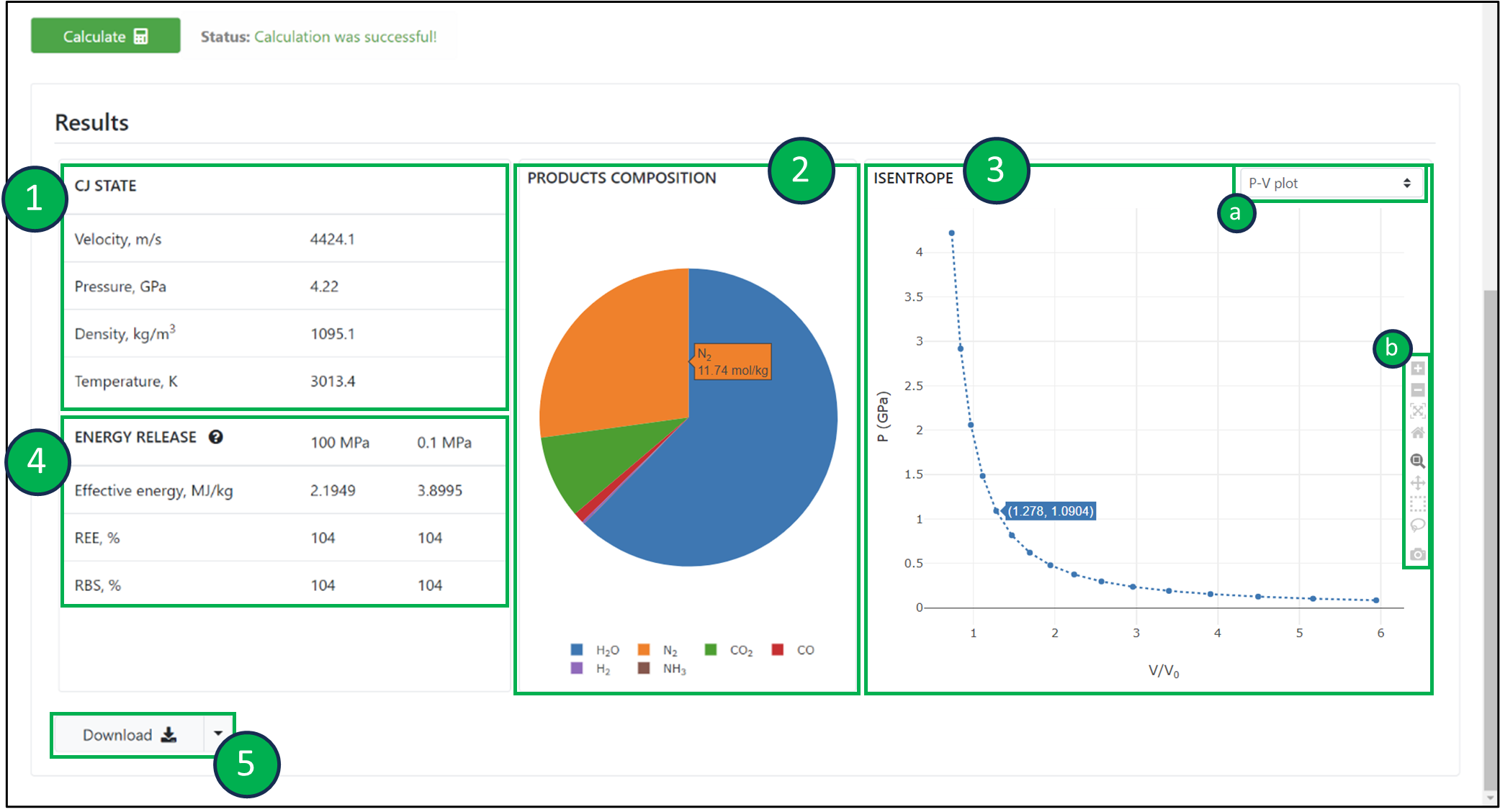 Visualising the simulation result
On this page
- Accessing the ‘Simulations’ page
- Creating the simulation
- Configuring the simulation
- Searching for ingredients
- Adding ingredients to the mixture
- Removing an ingredient
- Setting the simulation inputs
- Saving the simulation settings
- Modifying ingredients properties
- Running the simulation
- Visualisation of results

We’d be happy to help. Get in touch today.

© 2026 Cambridge Advanced Simulations. All Rights Reserved. Privacy Policy. Terms of Use.
COMPANY
Corporate Name:
Cambridge Advanced Simulations S.A.
Legal Form: Single Member S.A.
REGISTRATION
GEMI No: 188724401000
Athens